TABLE OF CONTENTS
ADMIN PRIVILEGES REQUIRED
Overview
Custom messages allow you to create, customize, and manage various messaging elements across your Stack Internal Community site. This makes it easy to reach your users in your way, with everything from site banners to onboarding messages.
To learn more about setting systems messages, including global messages and moderator announcements, read the System messages article.
To learn more about displaying messages for specific communities on your site, read the Community Broadcasts article.
Custom messages
To access Custom messages, click Admin settings in the left-hand menu, then Custom messages.
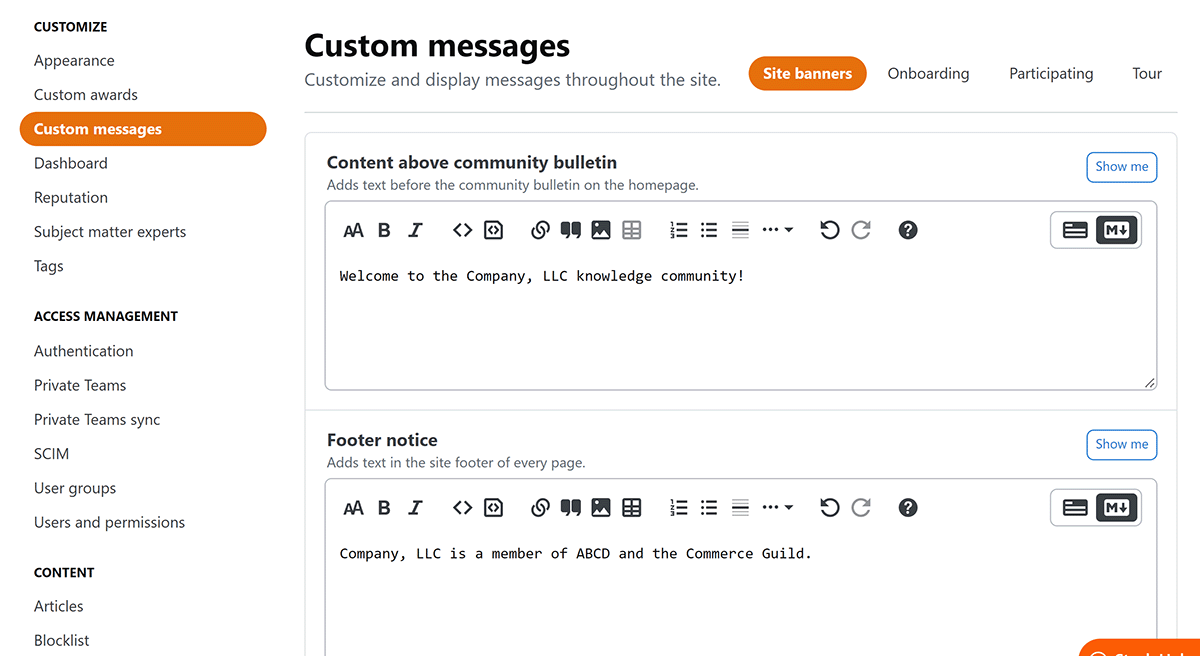
The "Custom messages" page allows you to craft your own messages in four areas: site banners, onboarding, participating, and tour. To access each of these areas, click the corresponding button in the upper-right corner of the page.

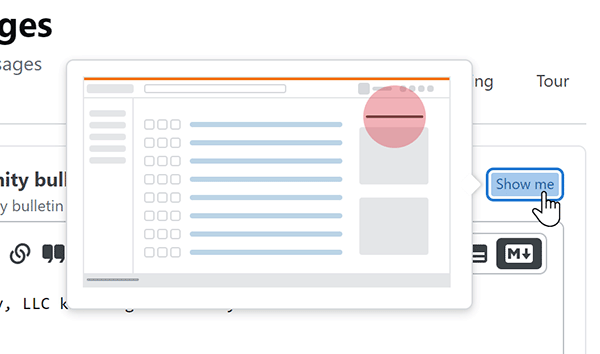
Some custom messages have a Show me button. Click this to see a thumbnail that shows where the message will appear on your site.
Site Banners
Click Site banners to control the content of various banners across your site, ensuring users receive important updates and alerts. You can add messages to the following areas of your site:
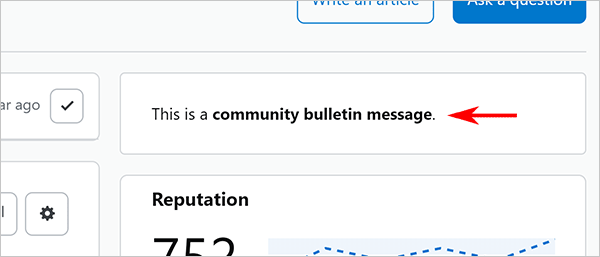
Content above community bulletin
This message appears at the top of the right-hand column on the user's home page.
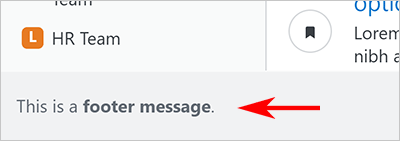
Footer notice
Use this message to add text, links, and other content to the footer at the bottom of every page.
Onboarding
Click Onboarding to create messages to help new users with the onboarding process. These messages include:
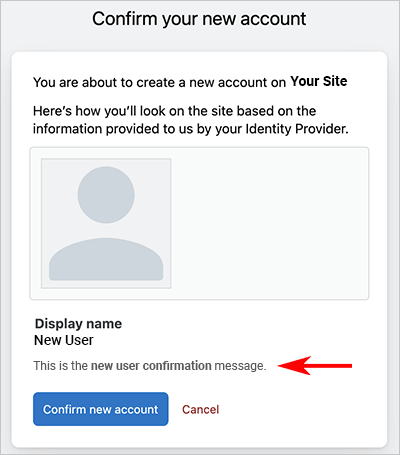
New user confirm
Use this message to communicate with new users before they finalize the account confirmation process.
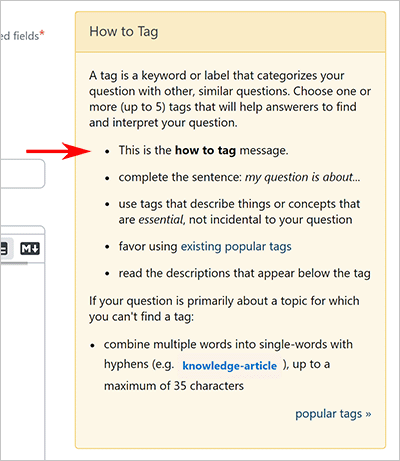
How to tag
Use this message to customize the first bullet prompt in the How to Tag sidebar. Users see this sidebar when adding tags to a new question.
Participating
Click Participating to customize messages that help your users add well-written, well-formatted questions and answers.
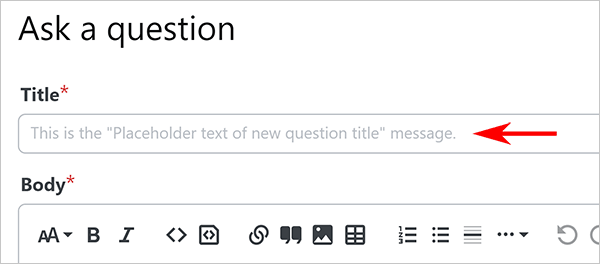
Placeholder text of new question title
Customize this message to pre-populate the question Title with text that will help users write effective question titles.
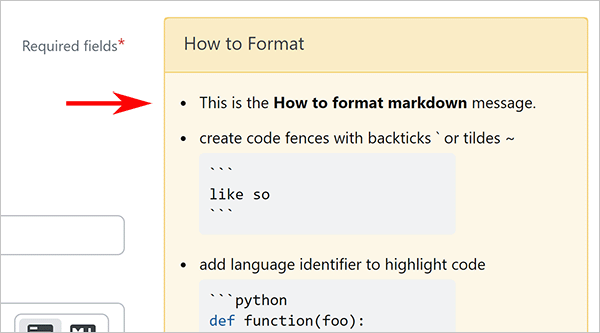
How to format markdown
This message allows you to add useful tips to the top of the How to Format help box. This box appears when users are writing the Body of their question.
Help text in sidebar
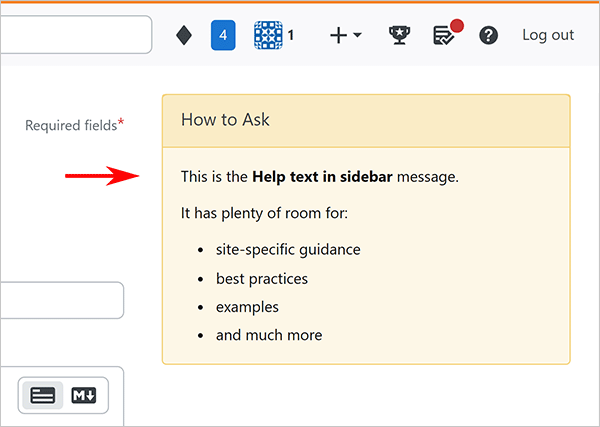
Use this message to add site-specific guidance for your users to craft better questions. The How to Ask sidebar sits on the new question page and has lots of room, so you can be generous with advice for your users.
Tour
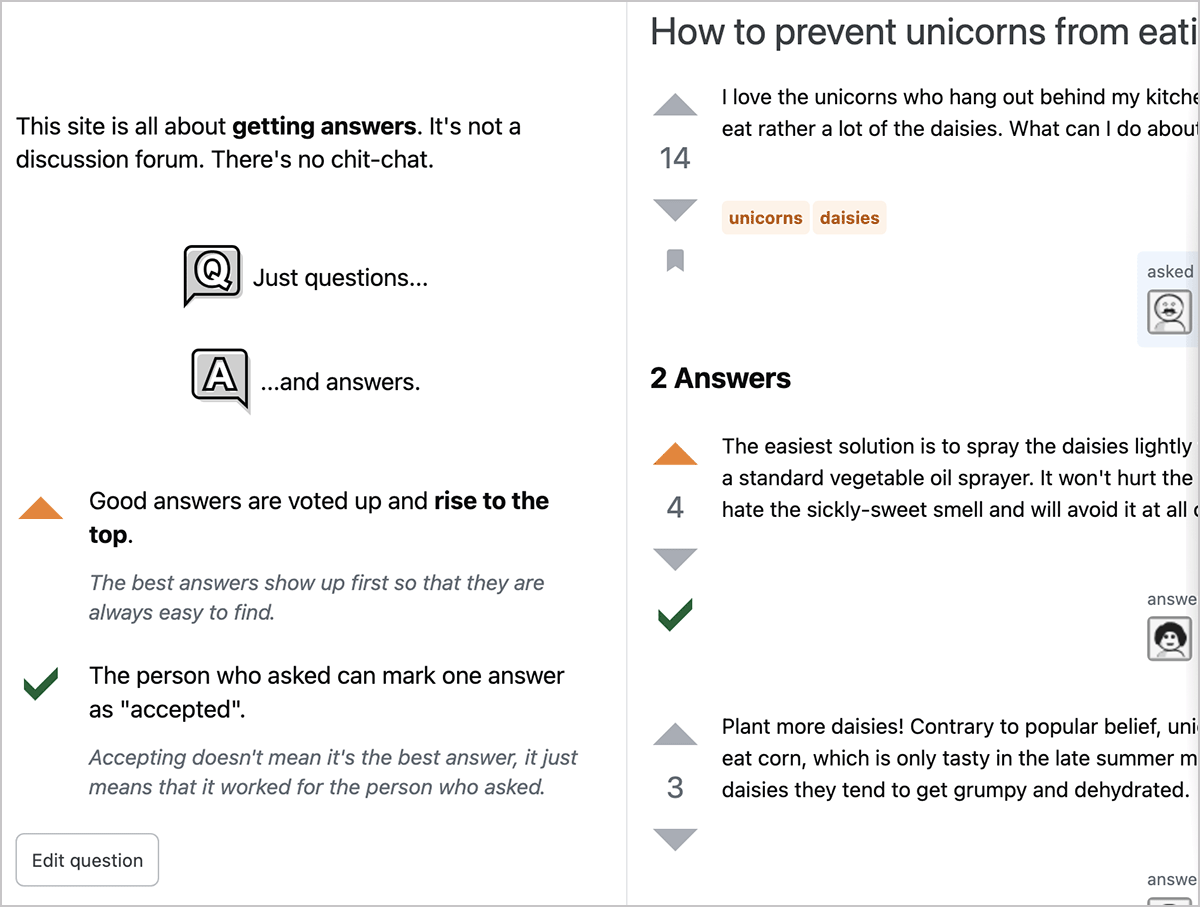
Click Tour to customize aspects of your site's Tour page. This page appears to new users, and is also available by clicking the (?) button at the top of your site.
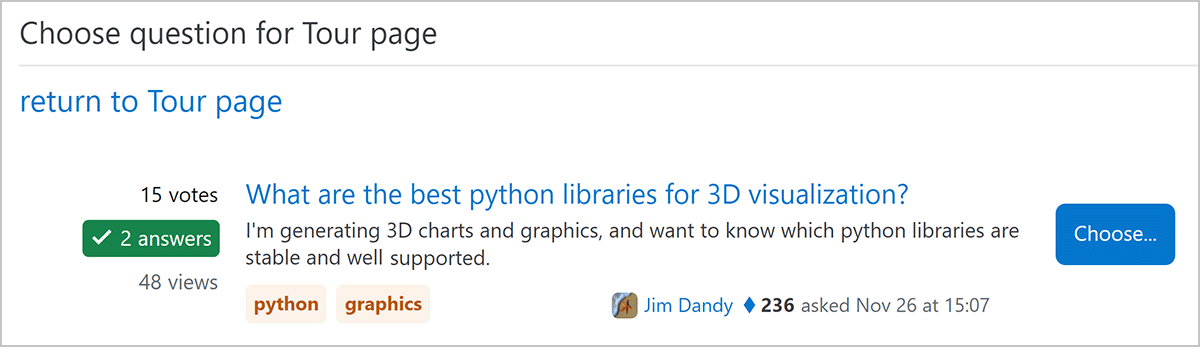
You can choose which example question to show on the tour page. As described in the right-hand column, the question featured on the tour page must meet specific criteria. Click Browse all eligible questions to locate an eligible question for the tour page.
When you find a suitable question, click Choose to see a preview of how the question will look on the tour page. To confirm, click Use this question for the tour page.
ID of example question
Once you browse and locate a suitable question for your tour page, the question ID will appear in this box. You can also enter a question ID directly if you know it's eligible for display on the tour page..
Max # of characters in the question and answer
Enter a character count limit to define the maximum size of the featured question and answer.
Allow block elements in the question/answer body
Check this box to disallow questions or answers with block elements (for example: lists, images, code blocks). Allowing these elements in the feature question or answer can affect the page layout.
If in the future the chosen example question no longer meets the requirements and any additional rules (such as character limit or block element), it will no longer show on the tour page. The tour page will revert to showing the default unicorns example question.
Caching of tour example question
- Your site caches eligible questions for 24 hours. If a question becomes newly eligible, it will take 24 hours to appear in the Browse Eligible Questions list.
- If you change the example question, the tour page may not show the updated question for up to 24 hours.