TABLE OF CONTENTS
ADMIN PRIVILEGES REQUIRED
Overview
System messages allow you to create, customize, and manage various messaging elements across your Stack Internal Community site. System messages include global messages for all users, as well as moderator announcements.
To learn more about setting other custom messages, including site banners, onboarding messages, tours, and more, read the Custom messages article.
To learn more about displaying messages for specific communities on your site, read the Community Broadcasts article.
System messages
To control your site's system messages, click Admin settings in the left-hand menu, then System messages. The "System messages" page allows you to view and control three different types of system messages. Use the pull-down menu to choose between them.
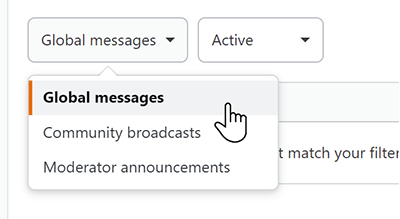
Global messages
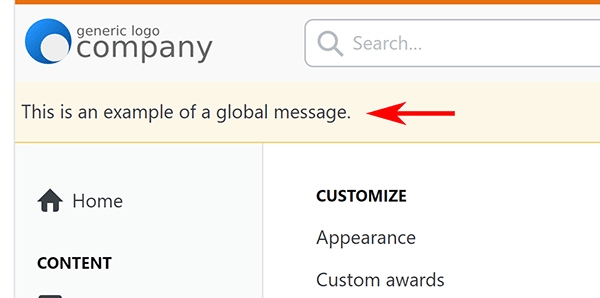
Global messages appear at the very top of the site, and are usually used for site downtime, password resets, and other events that affect all users.
The Global messages list shows message text, creator, and expiration date.
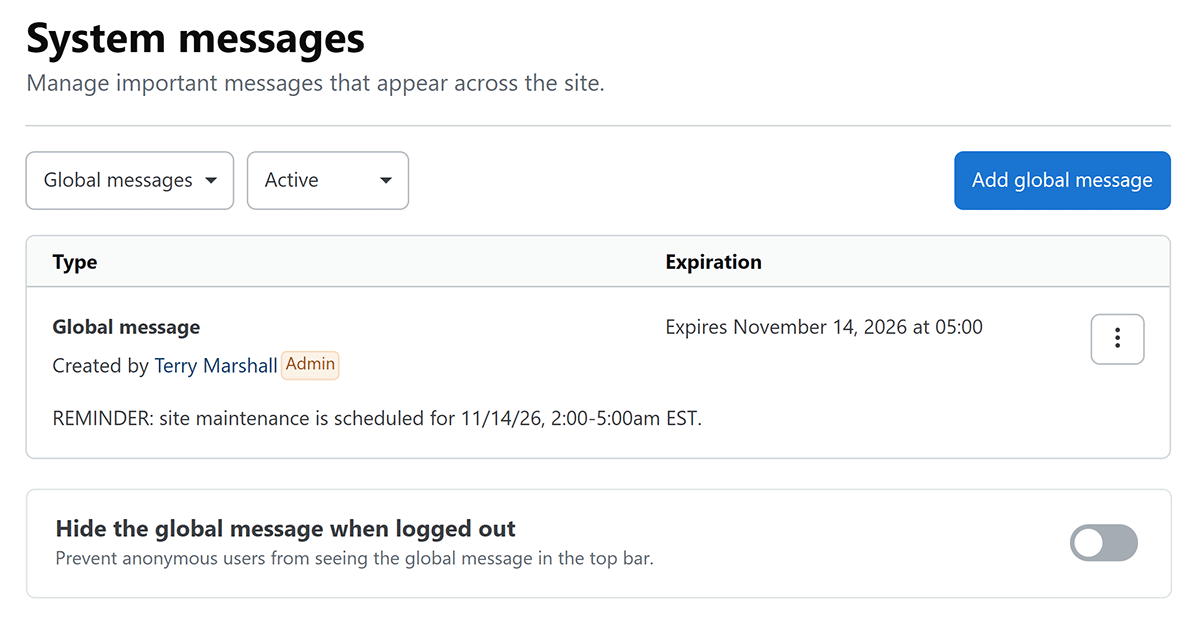
The list defaults to active messages. To view expired messages, change the second filter pull-down from Active to Expired.
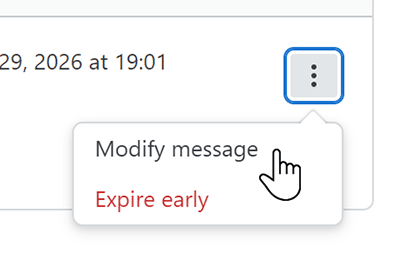
Click the three dots button to manage a message. You can select Modify message or Expire early for active messages, or Re-use message for expired messages.
To create a new global message, click Add global message. You'll see the "Create a new global message" box.
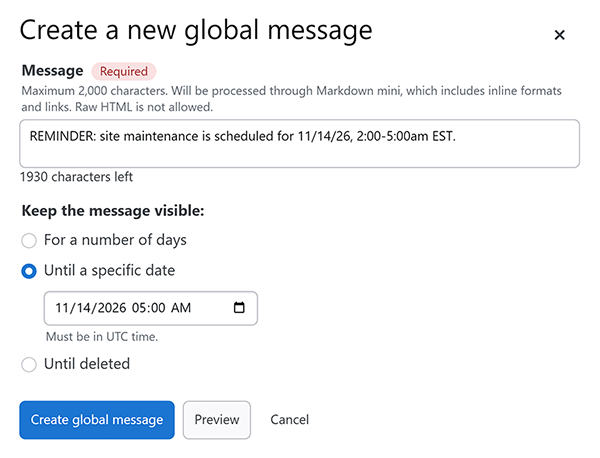
Enter your message, and set how long it should remain visible. Click Preview to see how it will display. Click Create global message to save and activate the message.
The maximum duration for a global message is 365 days.
Global message visibility
By default, global messages are visible to all users whether logged in or not. To display the system message to logged-in users only, enable the Hide the global message when logged out toggle.

Enabling this option ensures that system messages remain visible only to logged-in users. This is helpful for messages intended only for your active user base.
Community broadcasts
Community broadcasts are special system messages that appear as notices at the top of community pages. The System messages page allows you to only view and expire community broadcasts; you must go into a specific community to create new broadcasts. To learn more about creating community broadcasts, read the Community Broadcasts article.
To expire a community broadcast early, click its three dots button and select Expire early.
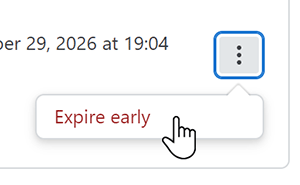
This will end the broadcast and remove it from the list. This process does not fully delete the broadcast. Users will still be able to view the broadcast from their "For You" inbox.
Moderator announcements
Moderator announcements are system messages that target moderators only. All moderators will see active announcements in their top-bar inbox.
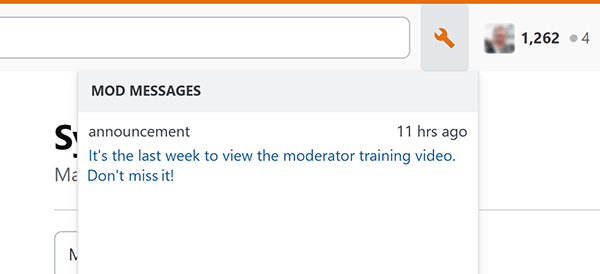
As with global messages, the moderator announcements list defaults to active announcements. To view expired announcements, change the second filter pull-down from Active to Expired.
Click the three dots button to manage an announcement. You can select Modify announcement or Expire early for active announcements, or Re-use announcement for expired announcements.
To create a new moderator announcement, click Add moderator announcement. Enter your message Title, and an optional URL. Set how long the announcement should remain visible. Click Create announcement to save and activate the announcement.
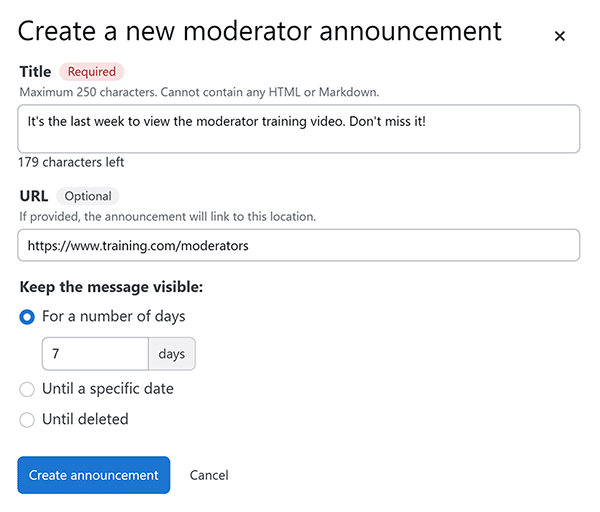
Unlike a global system message, a moderator announcement is a single line of text (the Title) with an optional URL link. Moderator announcements can't contain HTML or markdown formatting.