TABLE OF CONTENTS
ADMIN PRIVILEGES REQUIRED
Overview
A subject matter expert (SME) is a user recognized for knowledge of a topic on your Stack Internal Community site. SME status is associated with a specific tag. Site admins can assign SMEs manually or configure the site to assign SMEs automatically based on contributions to a tag.
The Subject matter experts settings page lets you control moderator permissions and automatic assignments. To access it, click Admin settings in the left-hand menu, then Subject matter experts under "CUSTOMIZE". You can also open the page by clicking SME settings on the subject matter experts user list.
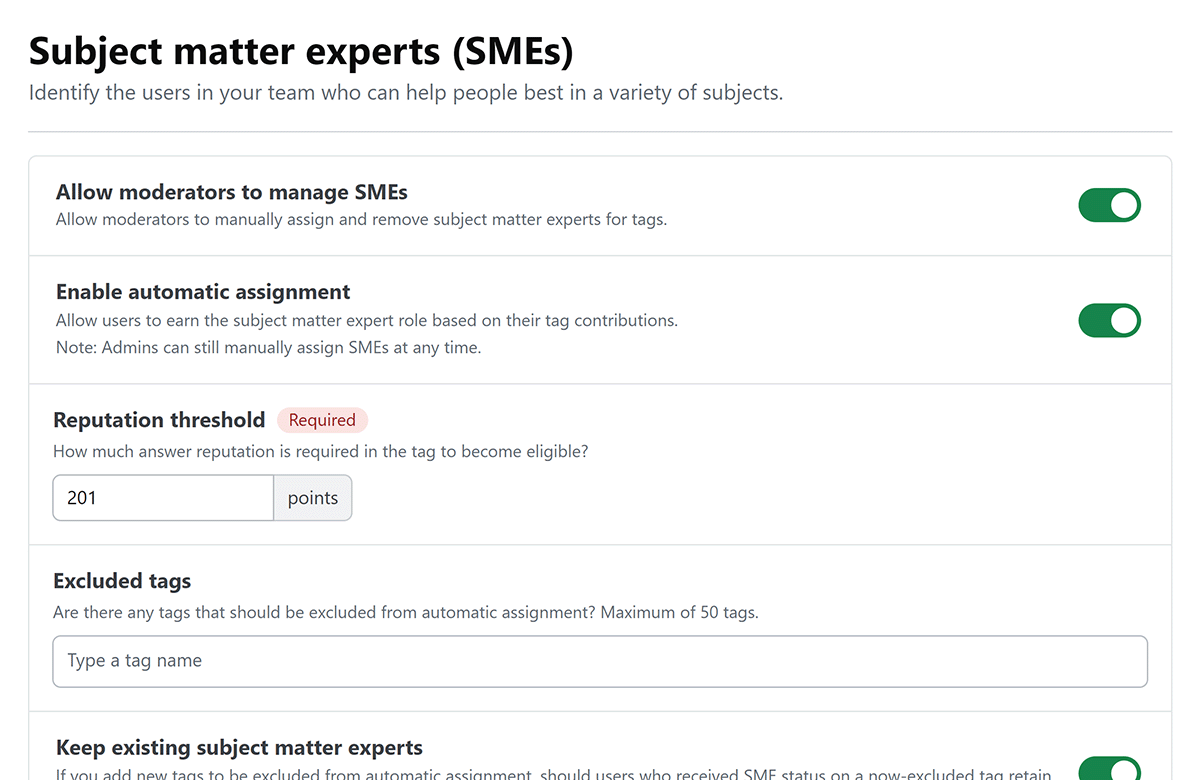
For instructions on viewing and manually assigning SMEs, see the Manage Subject Matter Experts article.
Moderator permissions
Use Allow moderators to manage SMEs to control whether moderators can manually assign and remove SMEs for tags. This setting is on by default. Admins can still manage SMEs when moderator access is off.
Automatic assignment
Enable Enable automatic assignment to let users earn SME status for a tag based on their contributions. Automatic assignment is off by default. Admins can still assign SMEs manually when automatic assignment is on or off.
If you disable automatic assignment, existing automatically assigned SME statuses remain. To review or change individual assignments, see Manage Subject Matter Experts.
Automatic assignment changes can take up to 30 minutes to process.
The following settings are available when automatic assignment is enabled. Some controls may not appear on every site.
Reputation threshold
Set Reputation threshold to the minimum reputation a user must earn for a tag to be eligible for automatic SME assignment. The default is 100 points. The site considers reputation earned from answers and articles associated with that tag, not the user's overall site reputation.
Excluded tags
Use Excluded tags to prevent automatic assignment for specific tags. Type a tag name and select it from the suggestions. To remove a tag from the exclusion list, click its X button. The page shows the maximum number of tags you can exclude.
Exclusion prevents automatic assignment; it doesn't prevent an admin from manually assigning an SME to a tag. Review Keep existing subject matter experts before saving a newly excluded tag, because the setting controls what happens to existing automatic assignments.
Keep existing subject matter experts
Use Keep existing subject matter experts to decide whether to retain automatic SME assignments when changes to the threshold or excluded tags would otherwise make users ineligible. Turn it on to keep those assignments; turn it off to remove automatic assignments that no longer meet the criteria.
Click How many users would be removed? to preview the impact of the current threshold and excluded tags before saving. This preview counts affected user-and-tag assignments, so a user affected on more than one tag can be counted more than once. It doesn't preview removals for inactivity.
Keeping existing SMEs does not prevent a later removal for inactivity when you define a demotion period. Automatic removal does not remove SME assignments made manually by an admin or moderator.
Demotion period
Use Demotion period to set the inactivity period, in months, after which an automatically assigned SME can lose that status for a tag. The site checks the creation date of the user's most recent answer or article in that tag for which the user gained or lost reputation. Receiving reputation on an older post doesn't change that post's creation date.
This setting applies to automatically assigned SMEs only. Manually assigned SME status isn't removed by the automatic inactivity process. The demotion period can also affect whether an inactive user is eligible for a new automatic assignment.
Save and review changes
After updating SME configuration, click Save settings. The page may show a processing notice.
Get help
If you have questions or issues, contact Stack Overflow Support.