TABLE OF CONTENTS
ADMIN PRIVILEGES REQUIRED
Overview
Site admins can control what information appears on Stack Internal Community user profiles and which profile details users can change. Consider your organization's privacy and identity-management policies before changing these settings.
To access the settings, click Admin settings in the left-hand menu, then User profiles. After changing the settings, click Save settings.
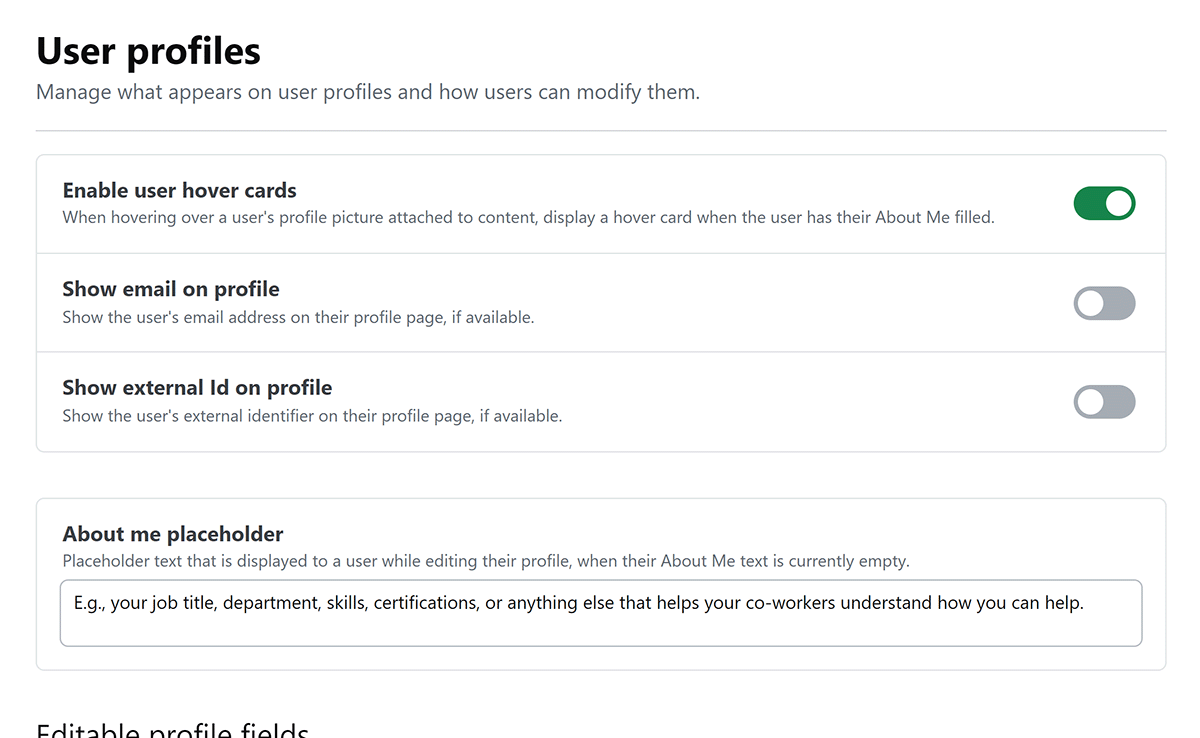
Profile information
These controls determine what profile information appears and what users see when they edit an empty About Me field.
- Enable user hover cards Show a card when someone hovers over a user's profile picture attached to content. The card appears only when that user has filled in About Me.
- Show email on profile Display the user's email address on their profile page, if available.
- Show external Id on profile Display the user's external identifier on their profile page, if available.
- About me placeholder Set the placeholder text shown to users editing an empty About Me field.
Editable profile fields
Use these settings to allow users to update their own profile details.
- Allow editing display name Allow users to choose the display name shown on the site.
- Allow editing profile picture Allow users to upload a profile picture.
If your site updates display names through single sign-on (SSO) or System for Cross-domain Identity Management (SCIM), those updates can overwrite names entered by users. Disable Allow editing display name to avoid users having their display name changes reverted.
Profile restrictions
These settings control display-name length and profile-image sources.
- Max display name length Set the maximum length for a display name, from 30 to 40 characters. The limit also applies to display-name updates through SSO and SCIM.
- Disable Gravatar Prevent users from using Gravatar or Identicon as their profile picture. Users who already have one of these pictures keep it until they upload a new picture. New users receive a silhouette icon if SSO doesn't provide a profile picture.
Get help
If you have questions or issues, reach out to our support team for help.