TABLE OF CONTENTS
ADMIN PRIVILEGES REQUIRED
Overview
When you set up Single Sign-On (SSO) for your Stack Internal Community site, the process requires you to add a SAML certificate generated by your identity provider (IdP). A SAML certificate expires, so you'll need to update it periodically to ensure your users can access your site.
We recommend you automate this process by providing your IdP's Federation Metadata URL to your site at Admin Settings -> Authentication. Your Stack Internal Community site can then use this URL to automatically retrieve a new certificate. If your IdP lacks this URL, or you choose to not use it, you'll need to track expiration timelines and manually provide a new certificate before the old one expires.
If your current certificate expires before you upload a new one, your site will lock users out with an "X509 Credential Invalid” error. If this happens, reach out to our support team for help.
Add a new certificate
If you're not using an IdP Federation Metadata URL, you'll need to manually retrieve a new certificate from your IdP and add it to your site. Consult your IdP's documentation for the process to create and download a new certificate.
After you've created and downloaded a new public key (certificate) from your IdP, log into your Stack Internal Community site as an admin. Click Admin Settings in the main menu, then Authentication. Scroll down to the "Identity provider certificates" section. Click Add another certificate and paste the Base64-encoded public key from your IdP.
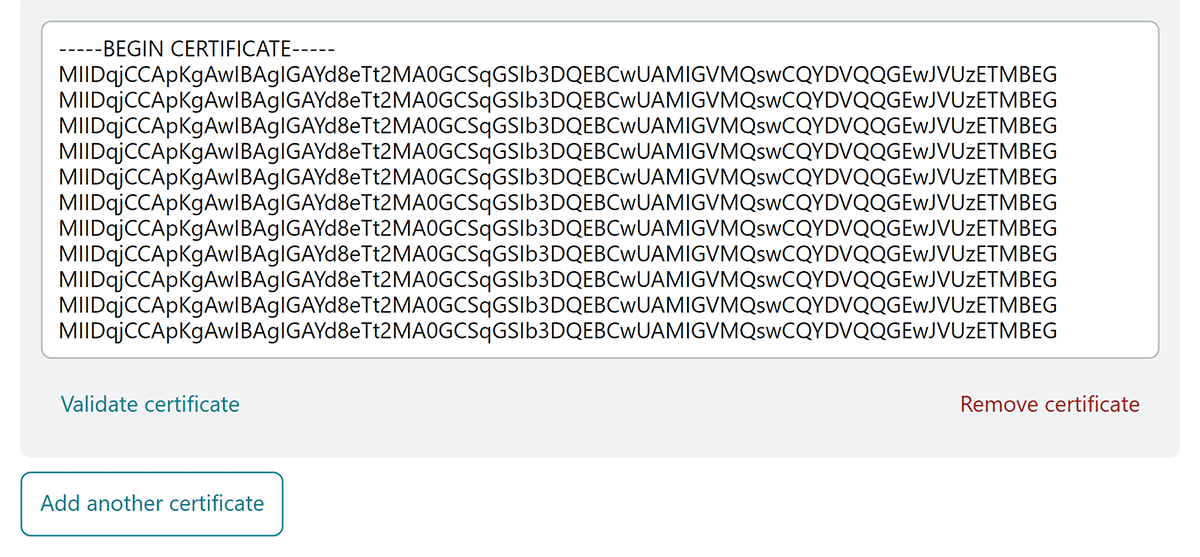
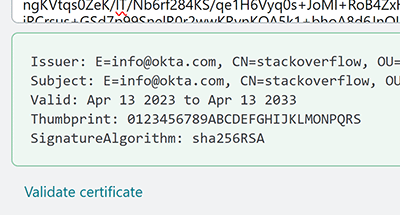
Click Validate certificate to verify the metadata for the public key. Look at the output to verify that the new certificate is valid and has a future expiration date. If the certificate passes validation, click Save settings to save the new certificate.
If you have a Federation Metadata URL entered, you will not see the "Identity provider certificates" section of the page.
Validate or delete an existing certificate
To see the expiration date of an existing certificate, click its Validate certificate link. Among other information, you'll see its "Valid:" date range.
To delete an expired certificate, click its Remove certificate link.
If you have questions or issues, reach out to our support team for help.