TABLE OF CONTENTS
ADMIN PRIVILEGES REQUIRED
Overview
Community broadcasts let admins and moderators send targeted announcements to specific community segments instead of posting one site-wide message. Broadcasts appear as notices at the top of community pages for up to 30 days. They can also send notifications to members through their "For You" inbox and email, so important updates reach the right people.
By centralizing management within your existing Admin settings, Community Broadcasts are an efficient tool to keep your members connected, informed, and highly engaged with the content that matters most to them.
Enable Community Broadcasts
During the initial rollout, you’ll need a hidden site-setting link from support to turn on Community Broadcasts. Contact support to get the link.
Site admins can enable community broadcasts from the "Communities" section in Admin settings. There, you'll see two controls in the "Community broadcasts" section. Enable community broadcasts turns the feature on for site admins only. Allow moderators to issue broadcasts allows moderators to create broadcasts as well.
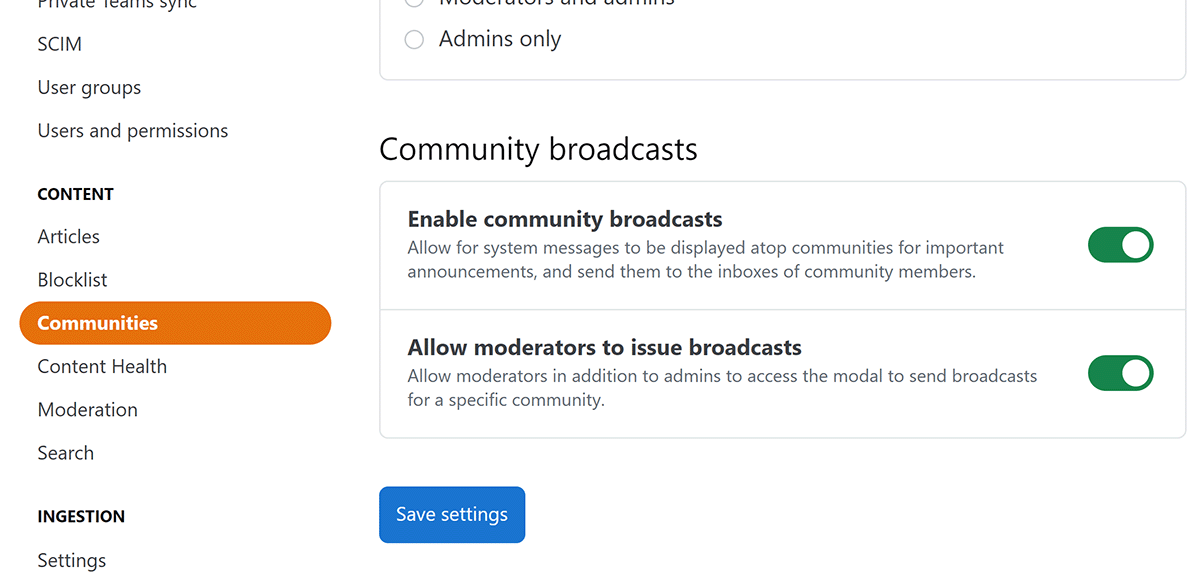
When you're done making changes, click Save settings to save the Community Broadcasts settings.
Create a broadcast
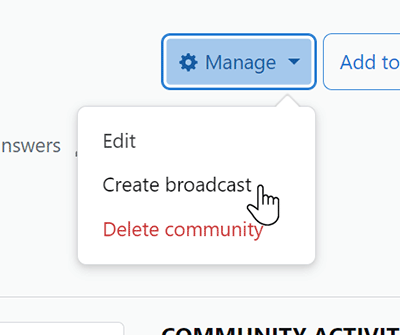
With the Community Broadcasts feature turned on, click into any community to create a new broadcast. Click Manage, then the Create broadcast option in the popover menu.
The "Create new broadcast" page will appear. The interface is similar to creating a global message within the Admin settings.
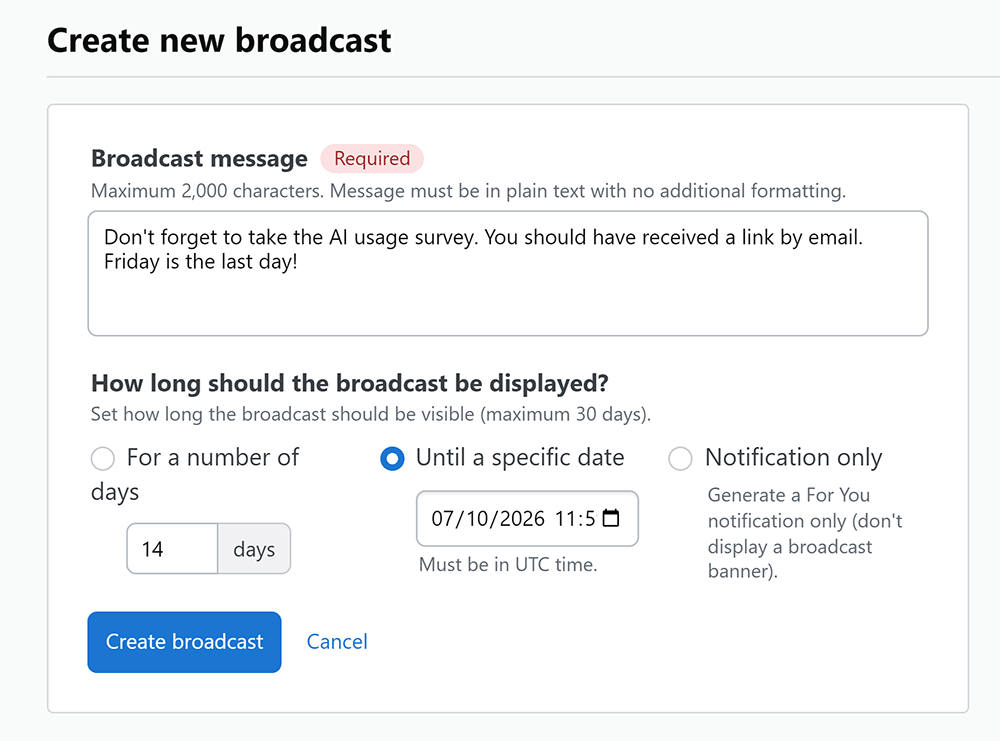
Enter your message in the Broadcast message text box. Broadcast messages must be plain text. They can't include line breaks, HTML, or Markdown.
Next, choose how long the message should appear at the top of the community page. Choose For a number of days or Until a specific date. Regardless of the option, you can't display a message for more than 30 days.
Notification only sends the message directly to the community members' "For You" inbox. If you choose this option, the message will not appear at the top of the community page.
You can only have one broadcast message active in a community at the same time. If you create a new message before the current one expires, the new message will replace it.
View a broadcast
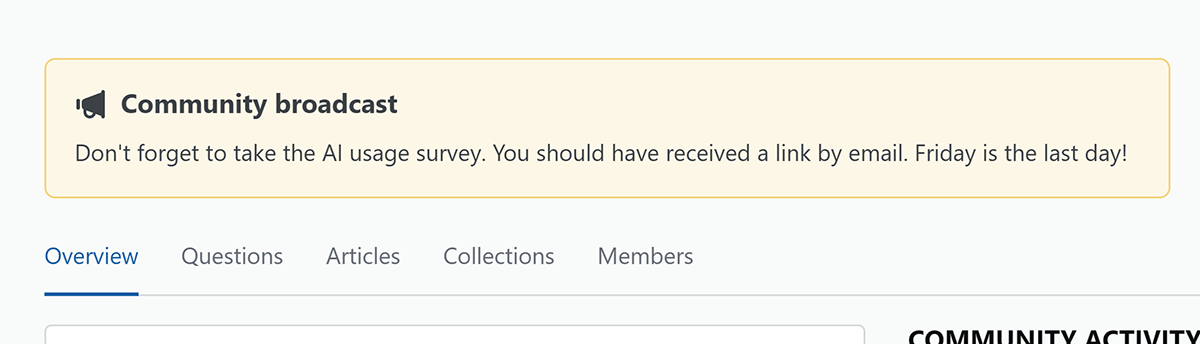
After you create a broadcast, community members will see it at the top of the community until it expires.
The broadcast also creates a "For You" notification for community members. If a member doesn't view the notification in their "For You" inbox on the site, they'll receive it as an email as well.
Expire a broadcast
Site admins can expire (remove) a broadcast early by going to Admin settings, then System messages (under the "COMMUNICATION" heading). Once there, use the first pull-down menu to select Community broadcasts. A list of active broadcasts (if any) will appear.
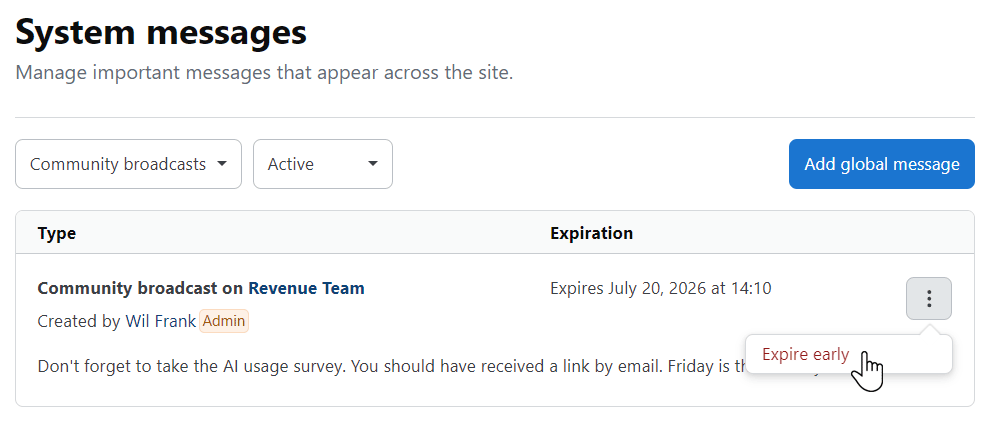
To remove a broadcast, click the three dots button and select Expire early. This will end the broadcast and remove it from the list. This process does not fully delete the broadcast. Users will still be able to view the broadcast from their "For You" inbox.
Only admins (not moderators) can expire broadcasts early.