TABLE OF CONTENTS
Overview
Stack Internal Community Basic and Business use personal access tokens (PATs) to authorize API requests. Stack Internal Community Basic supports read-only access; Stack Internal Community Business supports read-only and read/write access. You can create multiple PATs, with different parameters, for various teams and purposes.
If you authenticate and use the interactive API documentation (Swagger UI), it will create a dedicated PAT that you'll see in your PAT list. Learn more about Swagger UI.
Personal access token (PAT)
A PAT authorizes an external API application to access data on your behalf, and it grants access only to the data that you can see as a user. A PAT with read-only permissions, for example, can view the same content (questions, answers, comments) as you, and only in the team specified on creation.
To create and manage your PATs, click your avatar (profile picture) at the top of the page. Click Account settings, then Personal access tokens (under the "API" heading). The Personal access tokens (PATs) page appears, listing the description, team, scope, created date, and expiration date (if any) for each token. Click the Delete link next to any token to delete it.
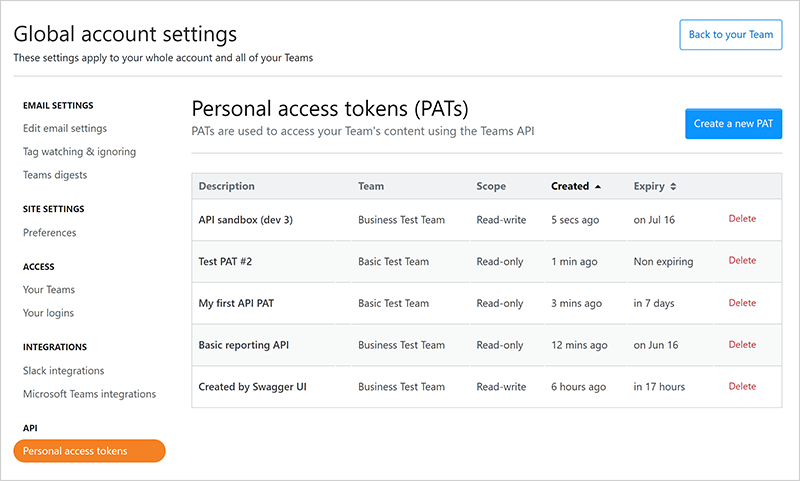
To create a new token, click Create a new PAT. The "Create a personal access token" box appears with the following fields:
PAT Description
Enter a unique description to help you identify the token.
Team scope
Select the team that this PAT can access. Each PAT can access only one team.
Expiration Date
Set a date this token will expire. You can choose 7, 30, 60, or 90 days, or no expiration. For security, we recommend setting an expiration for all PATs.
Enable write access (Business only)
Check this box to give the PAT permission to write as well as read data.
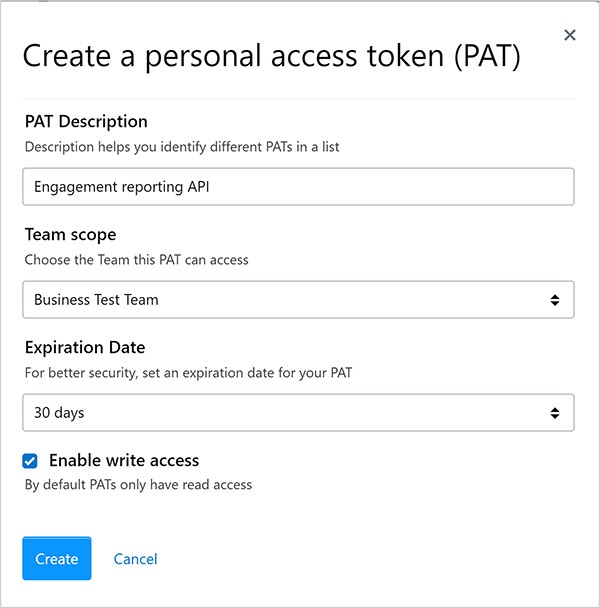
After you've entered your PAT information, click Create to create the token. The new token will appear in the PAT list with its unique code displayed in blue.
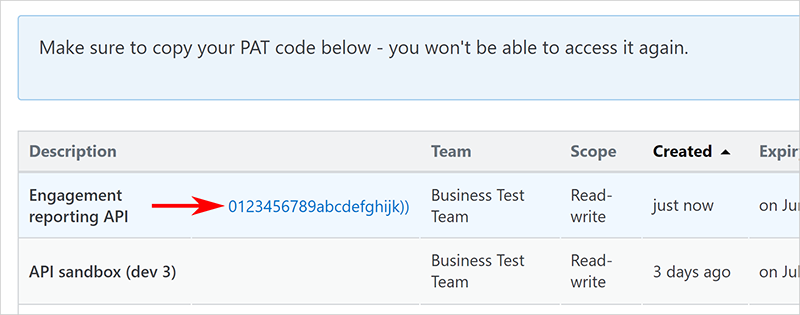
Click on the code to copy it to your computer's clipboard. Save the code to a document or password manager for safekeeping as it will not be displayed again. If you forget to copy the token code or lose it, you'll need to delete the token and create a new one.