TABLE OF CONTENTS
Overview
In addition to the default light theme, you can view your Stack Internal Community site with a dark theme to reduce eye strain. An additional high-contrast mode works with both light and dark themes to make text more readable.
Some sites require an administrator to enable high-contrast mode before you can use it. If you don't see the high-contrast option in your settings, contact your site admin for assistance.
Enable light, dark, and high-contrast modes
To change how your site looks, access your personal preferences.
- Click on your avatar (profile picture).
- Click Account settings (Stack Internal Community Free, Basic, and Business) or Settings (Stack Internal Community Enterprise).
- Click Preferences under the "SITE SETTINGS" heading.
You'll see theme and high-contrast display settings on this page.
Themes
The Preferences page gives you three Theme options:
- Light The default setting, with dark text on a light background.
- System setting Light or dark mode follows your computer (system) setting.
- Dark Light text on a dark background.
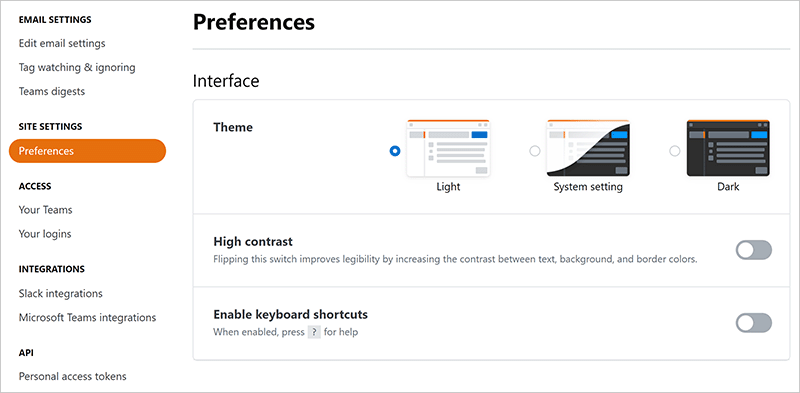
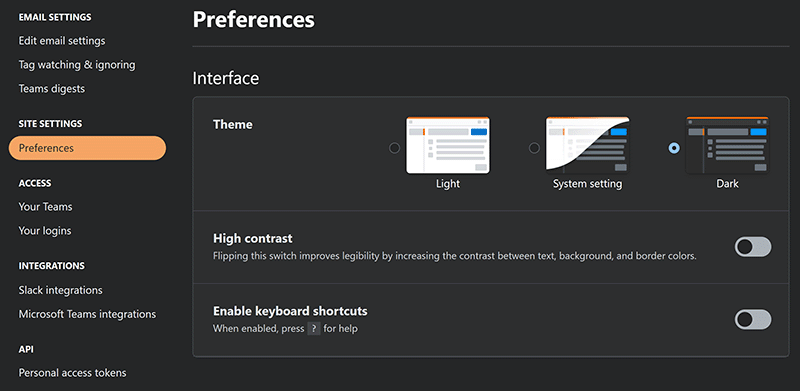
Below are examples of light and dark themes (normal contrast).
High-contrast mode
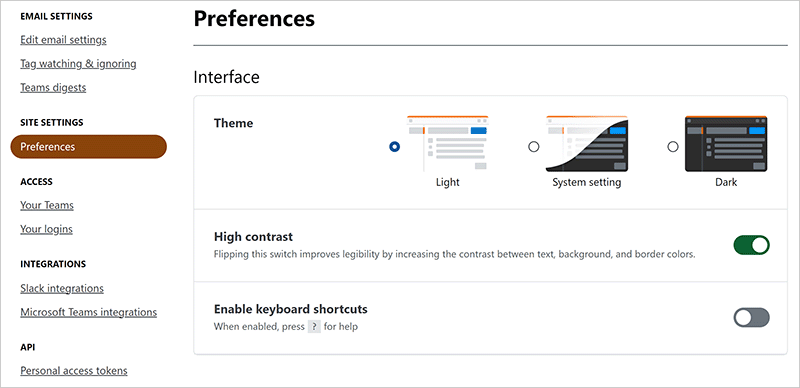
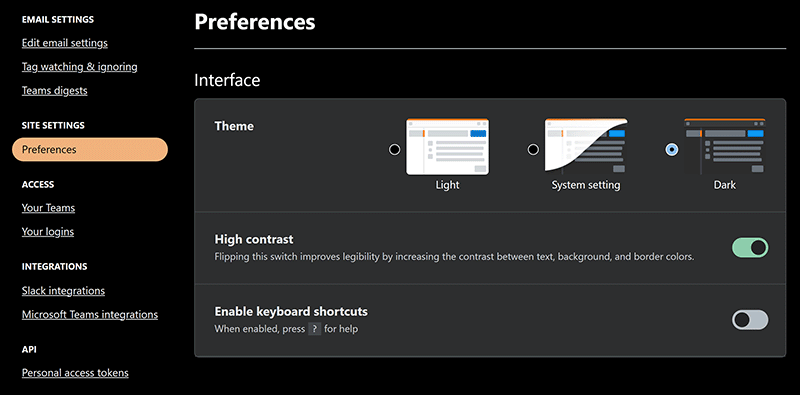
As its name implies, high-contrast mode increases the contrast of the Stack Internal Community interface to maximize legibility. Below are examples of high-contrast mode in both light and dark themes.