TABLE OF CONTENTS
Overview
Subject matter experts (SMEs) are users that demonstrate exceptional knowledge on a certain topic. You can learn more about SMEs in the Subject Matter Experts article.
The subject matter experts feature is available in the Stack Internal Community Business and Enterprise tiers only. Find your plan.
Administrators and moderators can designate certain users as SMEs. With Stack Internal Community Business and Enterprise, an automated process can also designate a user an SME when they achieve enough reputation in a given tag.
This article is for site administrators and moderators. Stack Internal Community Business and Enterprise admins can learn more about SME configuration in the Subject Matter Expert Settings article. Though written for Stack Internal Community Enterprise, Business sites have similar controls.
View subject matter experts
To view all subject matter experts, click Users in your site's left-hand menu. Click subject matter experts at the top of the page. The Subject matter experts (SMEs) page will appear.
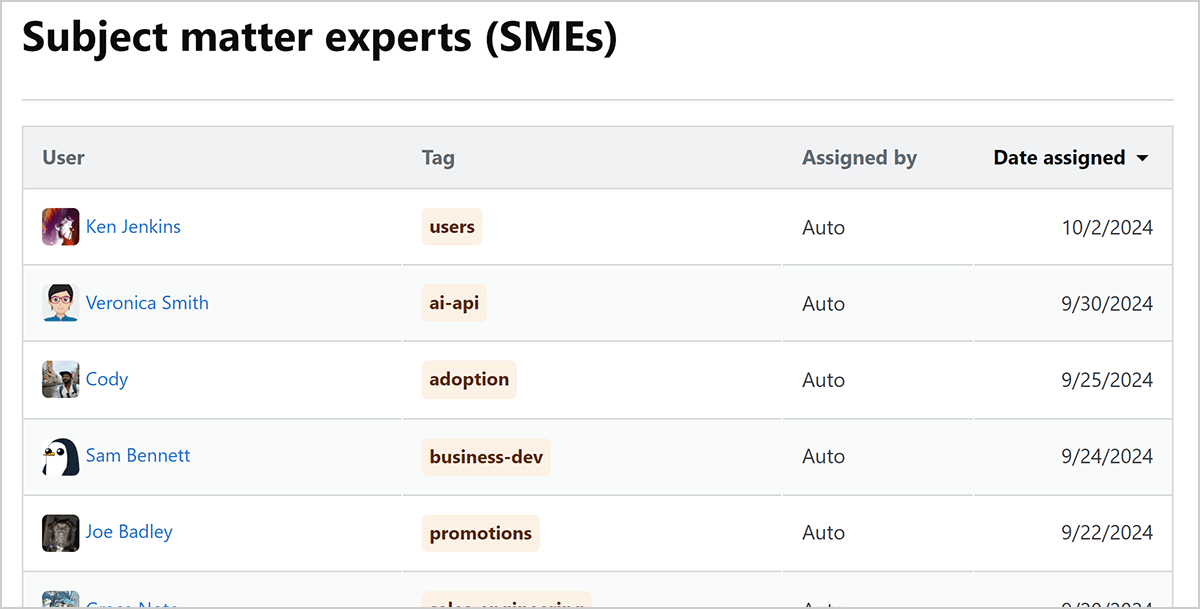
You can sort the list of SMEs by date by clicking on the Date assigned header. You can also click on any user name to go directly to their profile page.
As an admin, you can click SME Settings at the top of the page to access the SME settings page described later in this article.
Tags and subject matter experts
Stack Internal Community assigns SMEs at the tag level, so most SME management functions appear on the Tags page. To access the Tags page, click Tags in your site's left-hand menu.
The Tags table has the following columns: Name, Usage Guidance (description), number of Posts that use the tag, number of Watchers of the tag, number of subject matter experts (SMEs) assigned to the tag, and Date created. You can sort the Tags table by clicking the Name, Posts, or Date created heading.
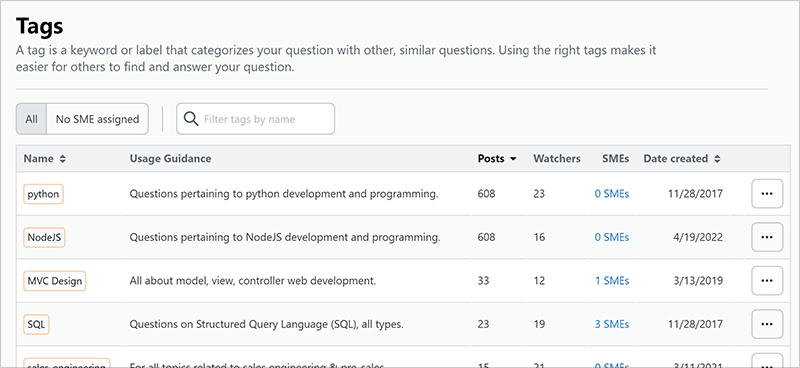
Use the buttons above the Tags table to select between two different views. Click All to view all tags, or No SME assigned to view those tags with no SMEs.
Viewing tags with no SMEs and sorting by Posts is an effective way to identify tags that have high usage but no subject matter experts. Finding and assigning SMEs for those tags will help drive engagement and improve the quality of your content.
Manage SMEs
To manage the SMEs assigned to a tag, click SMEs in the tag's row. You can also click the three dots button on any row and select Manage SMEs. The "Manage subject matter experts" box appears, listing the existing SMEs for that tag (if any).
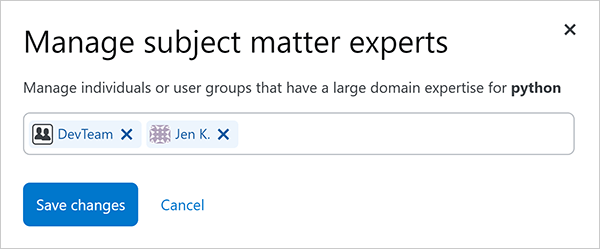
To add an SME, start typing the name of the individual user or user group. When the user or group appears in the search results lists, click it to assign it as an SME to the tag. To delete an SME, click the X next to the user or group name.
Stack Internal Community Enterprise will also search for users by email address and external ID.
The end-user experience
When a user becomes an SME, whether by manual assignment or SME Auto-Assign, they'll see a message on their Stack Internal Community Home page, question page, or article page. They'll also receive a confirmation to their For You inbox and email (if enabled).
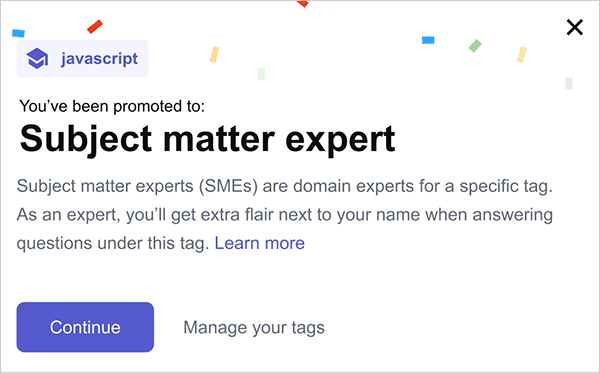
Users can view their SME status by clicking the gear button at the top of their homepage's Tags box, then SME tags. They'll see a list of the tags they are an SME for.
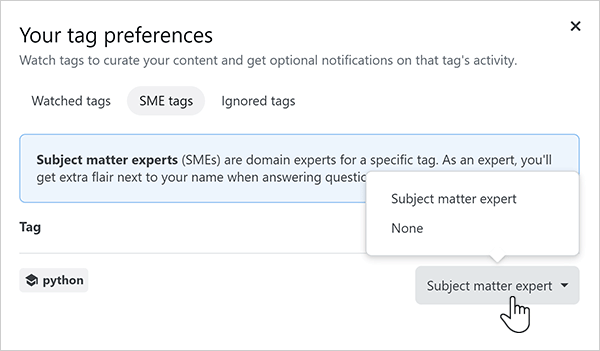
For SME tags assigned by automation, they can decline the assignment by clicking Subject matter expert for the tag and selecting None. Users cannot decline SME status assigned by an admin or moderator.
The SME Auto-Assign feature will remove SME status from users who've been inactive for a specified period of time. When the automation removes a user's SME status, they'll see an alert on their home page.
Manage SMEs with the API (Stack Internal Community Enterprise only)
Stack Internal Community Enterprise admins can use the Stack Internal Community API /tags endpoints to manage SMEs on their site. For more information on the API, check out our API v3 for Stack Internal Community Enterprise article.