TABLE OF CONTENTS

Overview
The Stack Overflow Visual Studio Code (VSC) Search feature can search your private Stack Overflow Internal site, the public Stack Overflow site, and the internet at large. This allows the feature to access vast amounts of information to provide explanations, insights, and potential answers to your search questions—right inside VSC.
The AI VSC Search feature:
- Composes its answers from user-generated content.
- Cites its source material.
- Allows you to refine its answers by asking follow-up questions.
- Can use your search transcript to generate a Stack Overflow Internal article draft.
NOTE: Before you can use the AI VSC Search feature, you must first install the Stack Overflow Internal Visual Studio Code extension by following these instructions. Your Stack Overflow site must also have Unified Search enabled.
Search Stack Overflow
After installation, you'll see a Stack Overflow extension in the left column of VSC.
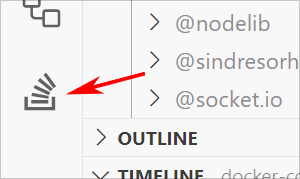
Click the Stack Overflow logo to switch to the extension. Type your question or search terms into the extension's chat box. Use the radio buttons to instruct the extension where to search. Search options include:
- All All internet data the LLM was trained on (including the Stack Overflow public site at www.stackoverflow.com).
- My Team Just your Stack Overflow Internal site.
- Stack Overflow The Stack Overflow public site (www.stackoverflow.com).
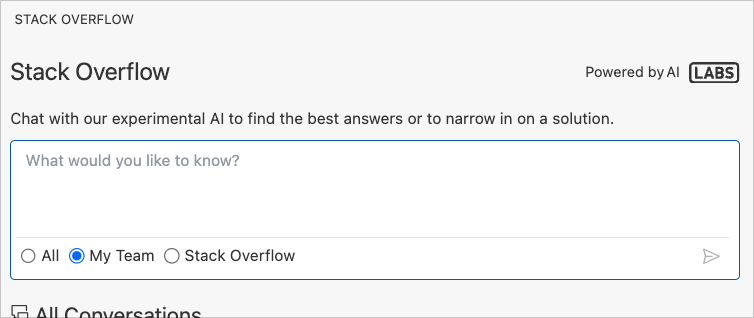
After you enter your question in the chat box, the Stack Overflow extension will analyze the search results it finds and compose a reply with citations.
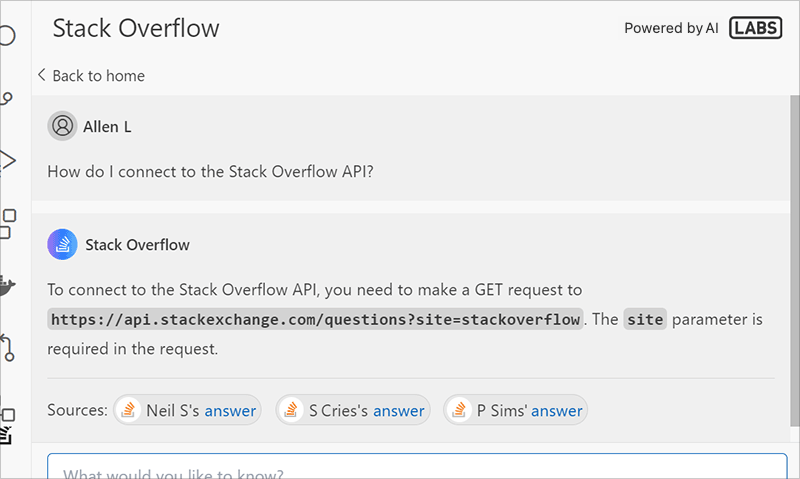
You can then:
- Click on any cited reference to view it.
- Refine your search by continuing the conversation with the extension in the chat box.
- Have the Draft Article feature turn your AI chat transcript into a new article draft on your Stack Overflow Internal site (learn more).