TABLE OF CONTENTS

Overview
The Stack Overflow Visual Studio Code (VSC) extension can search your private Stack Overflow Internal site, the public Stack Overflow site, and the internet at large. This allows the extension to access vast amounts of information to provide explanations, insights, and potential answers to your search questions—right inside VSC.
If the result of your AI search is an answer that will benefit your community, the Draft Article feature makes it easy to create a new Stack Overflow Internal article based on the conversation.
NOTE: Before you can use the AI Draft Article feature, you must first install the Stack Overflow Internal Visual Studio Code extension by following these instructions. Your Stack Overflow site must also have Unified Search enabled.
Create an article from your AI chat transcript
To generate an article draft from your AI chat transcript:
-
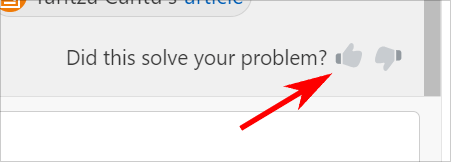
Beneath the extension's answer, look for “Did this solve your problem?”. Click the thumbs-up button next to the text.
-
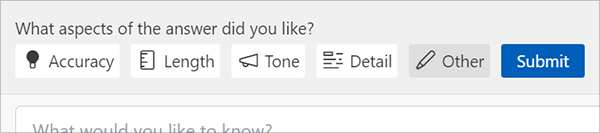
Select your feedback for the answer, and click Submit.
-
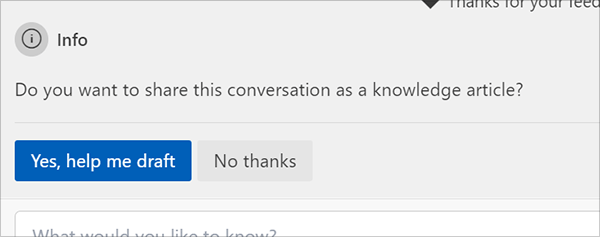
Beneath the "Do you want to share this conversation as a knowledge article?" prompt, click Yes, help me draft.
-
The Stack Overflow Extension will then generate a new file in your IDE, using the Markdown format.
-
To have the extension turn the AI-generated file into a new draft article on your Stack Overflow Internal site, click the Submit post (cloud upload) button in the upper-right corner of the window.
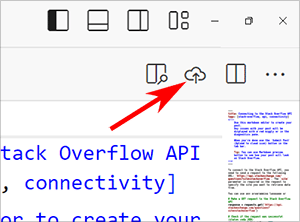
You can then edit and publish the new article draft on your Stack Overflow Internal site.
NOTE: You can also copy and paste the contents of the Markdown file on your Stack Overflow Internal site to manually create a new article.