TABLE OF CONTENTS

Overview
The Stack Overflow Internal MCP server makes your enterprise knowledge available to any MCP-compatible AI agent. It provides a structured interface for secure read and write access to your team’s content. The MCP server enables AI coding agents, AI assistants, and custom agents to:
- Read trusted, high-quality enterprise knowledge to improve their outputs.
- Draft, create, and edit questions, answers, and articles from within their own interface, seamlessly storing enterprise knowledge back to your Stack Overflow Internal site.
NOTE: We're providing this feature as a free trial for a limited time. If you wish to continue using the MCP server, have your site administrator reach out to their Stack Overflow Internal Customer Success Manager.
MCP Server landing page
To access documentation, one-click add-ons for Cursor and VS Code, and agent connection example code, go to https://[your_site].stackenterprise.co/mcp.
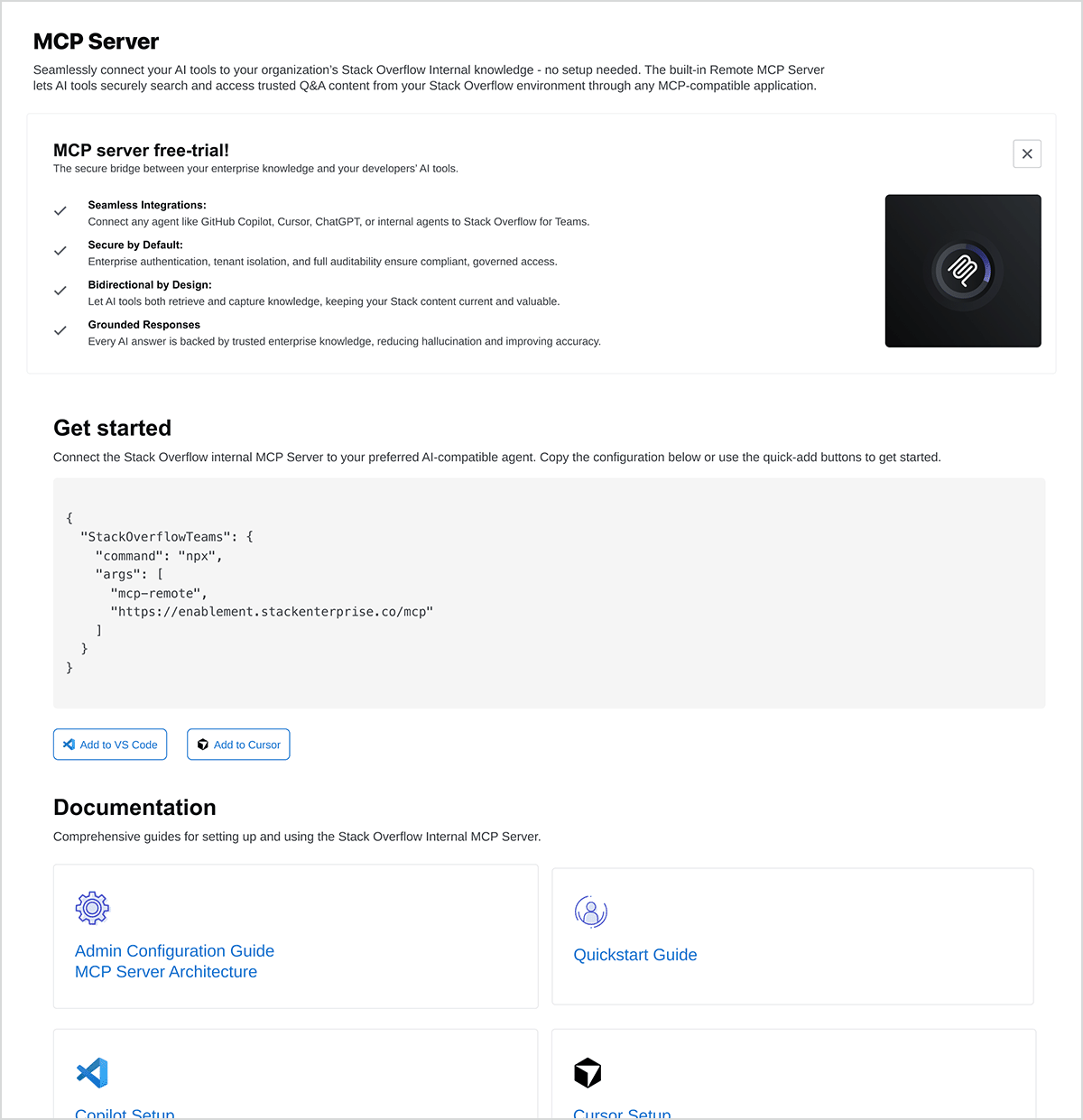
JSON connection code
You can connect to the software of your choice using the following JSON:
{
  "mcpServers": {
    "teams": {
      "url": "https://[your_site].stackenterprise.co/mcp",
      "headers": {}
    }
}
NOTE: The Stack Overflow Internal MCP Server uses streamable HTTP as its transport method. It does not support Server-Sent Events (SSE).
Authentication
The Stack Internal Enterprise MCP server uses OAuth 2.0 with PKCE for secure authentication.
- You'll authenticate with your Stack Overflow Internal account. The MCP client (for example: Copilot, Cursor, JetBrains Assistant) will open a browser window for login and token exchange.
- After Stack Internal Enterprise creates a new API service application for the MCP server, admins manage client registration and API access at https://[your_site].stackenterprise.co/enterprise/api.
- Tokens are short-lived and scoped to the authenticated user. As the MCP server doesn't support long-lived static tokens, agents must refresh tokens as needed.
- The MCP server enforces security at both the user and tenant level, and logs all requests for governance and attribution.
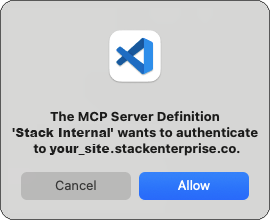
Example connection flow (VS Code)
-
MCP client requests authorization, redirects user to Stack Internal Enterprise login.
-
User signs in with SSO or Stack Overflow Internal credentials.

-
Authorization server returns a short-lived access token and refresh token.
-
MCP client exchanges the token for access to the MCP server endpoint at https://[your_site].stackexchange.co/mcp.
NOTE: If you’re building a custom internal agent, you’ll need to implement the standard OAuth 2.0 with PKCE flow. Your agent will use the MCP server URL AT https://[your_site].stackexchange.co/mcp. If you require different authentication methods, reach out to your contact at Stack Overflow.
Prompts
Prompts provide pre-built instructions to guide agents on how to use the MCP server. Prompts provide instructions for how to use the tools and resources available.
| PROMPT | DESCRIPTION |
|---|---|
search |
Query Stack Internal Enterprise for existing questions, answers, or articles. |
create_question |
Draft a question for the user to review. |
create_article |
Draft a knowledge article for the user to review. |
create_QA |
Draft a question and answer pair for the user to review. |
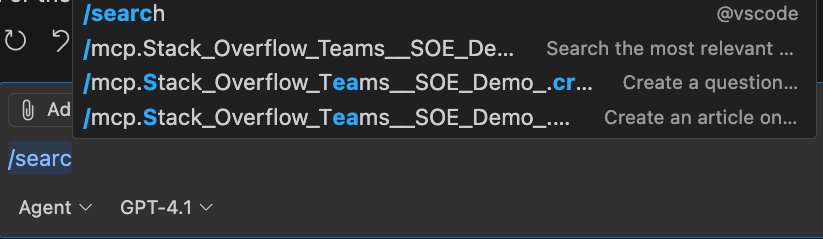
In addition to using natural language, you can invoke prompts by preceding them with the '/' character.
Prompt examples
How do I configure PKCE authentication?(invokes search prompt)/create_question "Error when connecting to remote MCP server"
Tools
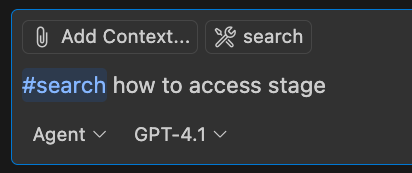
The MCP server exposes the following tools to MCP clients. Clients can invoke tools through normal conversations with the agent, or through '#' commands.
| TOOL | DESCRIPTION |
|---|---|
search |
Search for questions, answers, and articles. |
get_article |
Retrieve a specific article. |
get_comments_by_article |
Retrieve comments associated with an article. |
get_answers_by_question |
Retrieve answers for a question. |
get_comments_by_question_answer |
Retrieve comments on a specific answer. |
get_comments_by_question |
Retrieve comments on a specific question. |
get_question |
Retrieve a specific question. |
create_article |
Create a new article. |
create_question |
Create a new question. |
create_qa |
Create a question and answer pair. |
Tool examples
How do I configure PKCE authentication?(invokes search tool)#get_question 3172
MCP resources (advanced)
Resources are the “data” available to the client. Below is a comprehensive list of resources available.
| NAME | RESOURCE URI FORMAT | DESCRIPTION |
|---|---|---|
| Question | questions://{questionId} |
Retrieve an individual question. |
| Answers List | questions://{questionId}/answers |
Retrieve all answers for a question. |
| Answer Detail | questions://{questionId}/answers/{answerId} |
Retrieve a specific answer. |
| Article | articles://{articleId} |
Retrieve an individual article. |
| Comments on Question | questions://{questionId}/comments |
Retrieve all comments on a question. |
| Tags | tags://{tagName} |
Retrieve information about a specific tag. |
How it works
To use an analogy of building furniture, you can think of prompts as the directions, tools as your hammer and nails, and resources as your wood.
Prompts = Directions
Prompts are natural-language instructions your agent follows (for example: “Find related answers” or “Draft an article”). Prompts are great for everyday users in chat/IDE.
Tools = Hammer and Nails
Tools are the specific actions the agent can take (for example: search, create content, retrieve details). Tools are ideal when you're creating repeatable, automated workflows.
Resources = Wood
Resources are the materials, the actual pieces of knowledge (for example: questions, answers, articles) the agent retrieves and cites to keep responses trusted and auditable.
Prompts guide the work, tools do the work, resources prove the work.
Usage examples
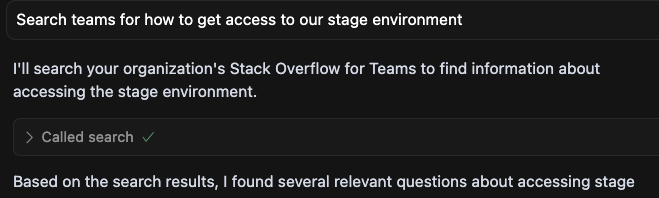
Agents will automatically invoke MCP server functions based on key words you use. The example below shows how the natural language prompt “Search teams…” caused the agent to invoke the search prompt.
You can also invoke prompts by preceding them with the '/' character.
You can explicitly invoke tools by preceding them with the '#' character.
If you're having problems accessing or using your MCP server, reach out to support.