TABLE OF CONTENTS
ADMIN PRIVILEGES REQUIRED
Overview
This article is an overview of how to set up Stack Internal Community for single sign-on authentication with Microsoft Active Directory Federation Service (AD FS). This document covers AD FS 4.0 on Windows Server 2016. Previous versions will look and behave differently.
This article is not a comprehensive guide to AD FS, but rather a quick overview.
Create a Relying Party Trust
Manual setup
Before configuring Stack Internal Community, you must manually set up the relying party trust.
-
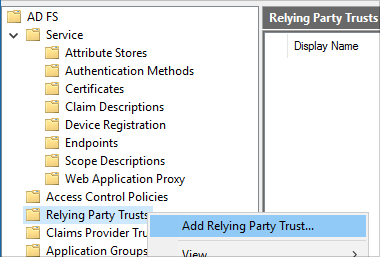
In the AD FS folder tree, right-click on Relying Party Trusts. Click Add Relying Party Trust.
-
Choose Enter data about the relying party manually.
-
Enter a name of your choice.
-
Optional: Specify a certificate to encrypt the SAML assertion. This is a public key for which the Stack Internal Community server has the private key.
-
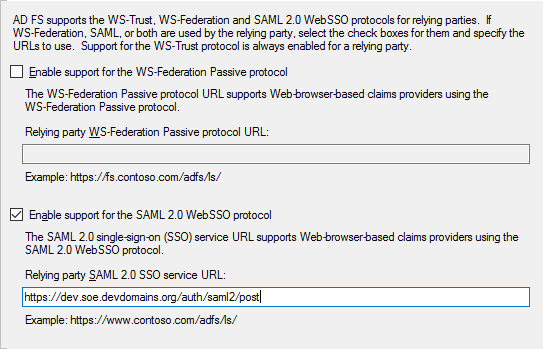
Check Enable support for the SAML 2.0 WebSSO protocol and enter the full SAML 2.0 post URL for your Stack Internal Community instance (https://[your_site].stackenterprise.co/auth/saml2/post) into the Relying party SAML 2.0 SSO service URL.
-
Set an Identifier. You can make this anything you like. You'll enter this value as Issuer on your Stack Internal Community authentication settings page.
-
Choose your desired Access Control Policy.
-
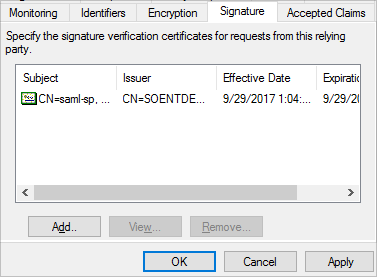
To add an optional certificate, right-click on the new Relying Party Trust. Select Properties, then the Signature tab. Click Add to add a certificate. This allows Stack Internal Community to sign authentication requests and AD FS to validate the signature.
Additional configuration
Some settings for the Relying Party Trust cannot be configured through the GUI, but require PowerShell. Please refer to the Set-AD FSRelyingPartyTrust cmdlet for a full list of settings.
Here is an example Set-AD FSRelyingPartyTrust cmdlet command:
Set-AD FSRelyingPartyTrust -TargetName "Stack Internal Community" -SignedSamlRequestsRequired $true -SignatureAlgorithm "http://www.w3.org/2001/04/xmldsig-more#rsa-sha256" -SamlResponseSignature "MessageAndAssertion"
Some settings that you might want to check:
SignedSamlRequestsRequiredEnforces the need for AuthnRequests to be signed.SignatureAlgorithmConfigures SHA-256 instead of the default SHA-1.SamlResponseSignatureSets which part of the XML Response are signed.SigningCertificateRevocationCheckConfigures if and how the signing certificate is checked for validity (used when verifying signed AuthnRequests).EncryptionCertificateRevocationCheckConfigures if and how the encrypting certificate is checked for validity (used when encrypting the SAML Response).
Configure the claim issuance policy
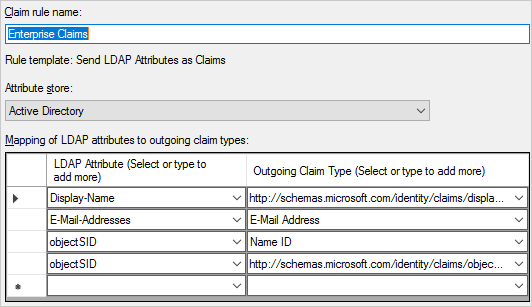
You need to configure the claims that are being sent in the SAML response. Stack Internal Community requires a user identifier, display name, and email address.
Using rule language
The following command configures FS AD to send the displayName, mail, and objectSID attributes.
c:[Type == "http://schemas.microsoft.com/ws/2008/06/identity/claims/windowsaccountname", Issuer == "AD AUTHORITY"]
=> issue(store = "Active Directory", types = ("http://schemas.xmlsoap.org/ws/2005/05/identity/claims/nameidentifier", "http://schemas.microsoft.com/identity/claims/displayname", "http://schemas.xmlsoap.org/ws/2005/05/identity/claims/emailaddress", "http://schemas.microsoft.com/identity/claims/objectidentifier"), query = ";objectSID,displayName,mail,objectSID;{0}", param = c.Value);
Manual setup
-
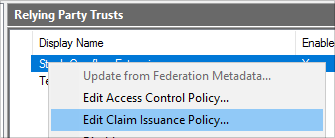
Right-click your new Relying Party Trust and select Edit Claim Issuance Policy.
-
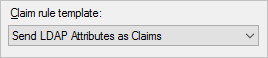
Set Claim rule template to Send LDAP Attributes as Claims.
-
Configure the required attributes. Note that Stack Internal Community does not currently use Name ID, but you should set it the same as User Identifier in case this changes in the future.
Troubleshooting AD FS
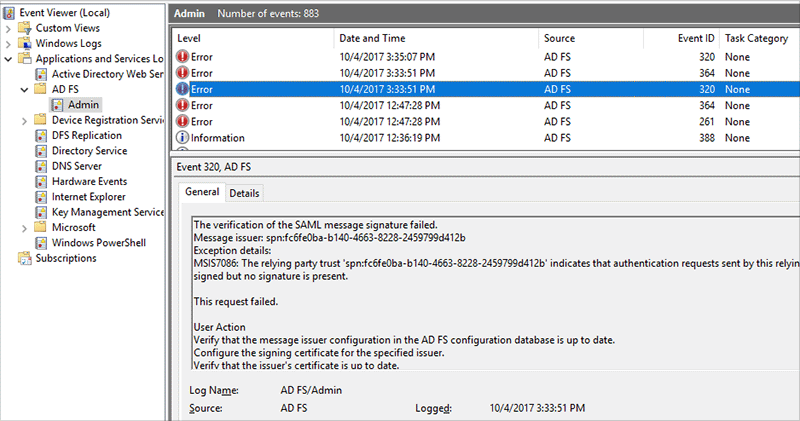
AD FS has an application-specific event log that is informative and helpful when troubleshooting problems. To access the AD FS log, open your local Event Viewer and expand the Applications and Services Logs folder. Expand the AD FS folder and click Admin.
SSO fails because of unsigned requests or a missing Name ID
When configuring AD FS for Stack Internal Community Basic or Business, you may encounter two separate configuration issues.
AD FS requires a signed authentication request
If AD FS displays the following error, its relying party trust requires a signature that the authentication request does not contain:
MSIS7085: The server requires a signed SAML authentication request but no signature is present.
Basic and Business send unsigned SAML authentication requests. On your AD FS server, open PowerShell with administrator privileges and run the following command. Replace Your relying party trust name with the display name of the trust you created for your Team:
Set-AdfsRelyingPartyTrust -TargetName "Your relying party trust name" -SignedSamlRequestsRequired $false
This changes the requirement for requests sent to AD FS. Keep the AD FS token-signing certificate and SAML response-signing configuration in place.
The SAML response is missing a Name ID
If authentication still fails, check the SAML debug output for a missing Subject/NameID or a message such as No SAML ID was given.
By default, Stack Internal Community uses the SAML response’s Name ID to identify the user. Sending an email address as an ordinary email claim does not also populate the Name ID.
To use the email address as the Name ID:
- In AD FS Management, right-click your Team’s relying party trust and select Edit Claim Issuance Policy.
- Confirm that the existing LDAP attribute rule sends E-Mail-Addresses as E-Mail Address.
- Add or edit a rule using Transform an Incoming Claim.
- Set Incoming claim type to E-Mail Address, Outgoing claim type to Name ID, and Outgoing name ID format to Email.
- Place this transformation after the rule that supplies the email claim, then save your changes.
The identifier must remain stable for each user across sign-ins.
Sign-in succeeds, but a Name ID format warning remains
If the debug output reports Unrecognized or missing NameID Format, the Name ID may be present but its format is missing or unrecognized. This warning alone does not mean authentication failed.
When the Name ID contains an email address, selecting Email as the outgoing format supplies:
urn:oasis:names:tc:SAML:1.1:nameid-format:emailAddress
Return to your Team’s Authentication settings, test the SAML configuration again, and confirm that sign-in succeeds. If AD FS instead returns a generic non-success status, review its event logs or contact Support; that error can have other causes.
For more information on troubleshooting, see the SAML Authentication Troubleshooting article.