TABLE OF CONTENTS
ADMIN PRIVILEGES REQUIRED
Overview
Stack Internal Community requires the configuration of an SMTP server in order to send inbox notification, tag subscription, newsletters, digests, and other emails to users on the site. You can find more information about these emails in the Engagement Emails and Management article.
By default, hosted Stack Internal Community sites will send email notifications from the @stackenterprise.co email domain. Site admins can also configure email settings to send emails from their own SMTP server.
Configuration
To configure email settings, click Admin settings in the left-hand menu, then Email setup under the "COMMUNICATION" heading.
Stack Internal Community hosted customers will see an Enable stackenterprise.co domain email for notifications toggle, which is enabled by default on new hosted sites so email notifications can be sent immediately.
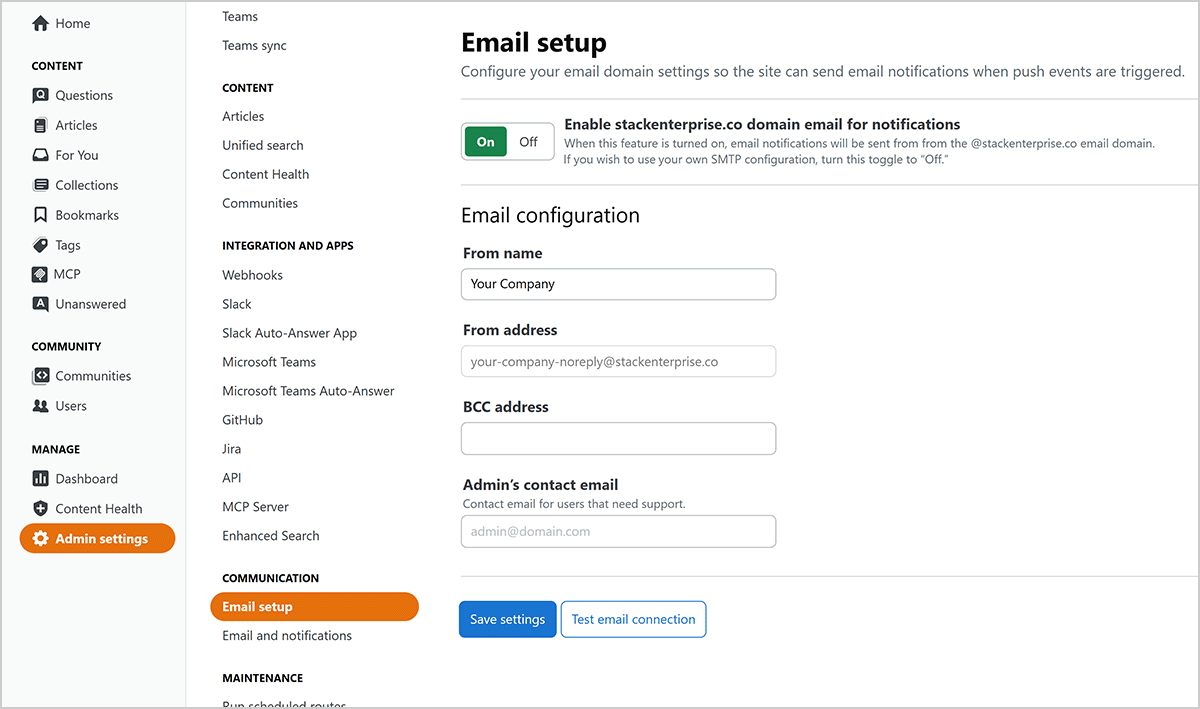
If you'd prefer to use your own SMTP server, set the toggle to Off. You'll then see additional fields for configuration.
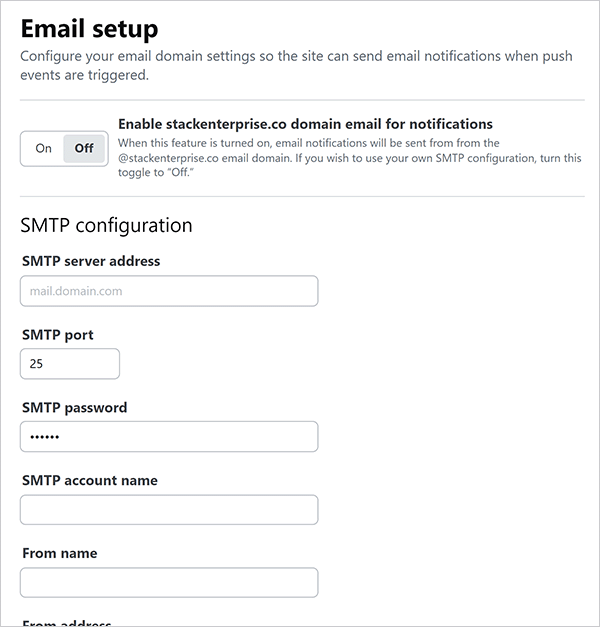
Below is a list of fields available for configuration, some of which are hidden when using the default hosted SMTP email setup (when Enable stackenterprise.co domain email for notifications is On).
- Server address The address of the STMP server that you will send emails through.
- Port Adjust the port number if the STMP server does not communicate via port 25.
- Password If applicable.
- Account name If applicable
- From name This is the name that will appear next to the from address on emails from the site.
- From address The address to appear as the sender of an email. It must be authorized to send email from that domain.
- Do not reply address The reply-to address for handling responses to do-not-reply messages.
- BCC address If applicable. This is the default bcc: address that will be used in all emails from the site.
- Log traffic Log all outgoing SMTP traffic for debugging purposes.
Advanced settings
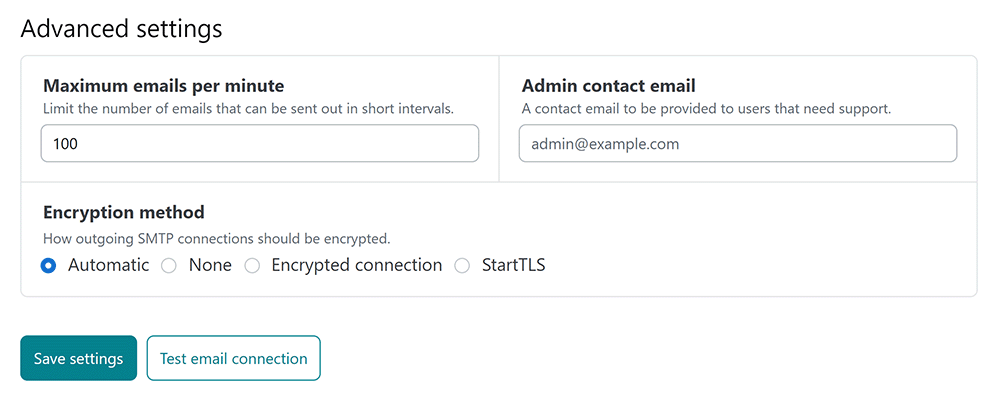
- Maximum emails per minute Limit the number of emails that can be sent out in short intervals.
- Admin contact email A contact email to be provided to users that need support.
- Encryption method
- Automatic Using this will tell the site to attempt to figure out settings automatically, such as EnableSSL or StartTLS.
- None no encryption - this is not generally recommended since all SMTP traffic will be in plain text.
- Encrypted connection Use implicit SSL/TLS (that is, when the server to which you are connecting expects all connections to use TLS from the start). This is often the case when your SMTP server uses port 465.
- StartTLS Use explicit SSL/TLS (that is, when the server to which you are connecting expects all connections to explicitly issue a STARTTLS command). This is often the case when your SMTP server uses ports 25 or 587.
- Admin’s contact email This sets the site administrator's email, the contact email address for your users that need support.
Validation and troubleshooting
Once you've saved these settings, click Test email connection. This will trigger a test email to the email address associated with your account. This page will show you the communication log between the application and the SMTP server that you configured.
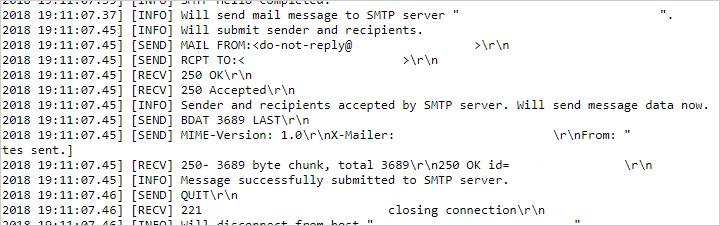
You should be able to resolve any configuration issues via this log. On success, the email configuration test will send an email to your actual email account. This confirms that the application can successfully communicate and send emails through the configured SMTP server.
Get help
If you have questions or issues, reach out to our support team for help.