TABLE OF CONTENTS
ADMIN PRIVILEGES REQUIRED
Overview
Stack Internal Community has a blocklist tool that allows you to create a list of specific words or phrases that the site will watch for as users submit text. If the blocklist tool finds a match, it will warn the user or even block them from submitting what they wrote. The blocklist can watch for personally identifiable information (PII), passwords, security keys, profanity, and more.
The blocklist uses regular expressions (regex) patterns to perform flexible, case-insensitive matches. Regex patterns can be tricky to write, so we suggest using the many tutorials and regex testers available online. We'll also list some specific patterns in the "Regex patterns" section at the end of this article.
Stack Internal Community's blocklist is a rarely used feature with minimal controls. We recommend you use it in limited cases, to block just a few words or phrases. One malformed blocklist entry could keep your users from entering text anywhere on your site.
The blocklist interface
To access the blocklist, click Admin settings then Blocklist under the "CONTENT" heading.
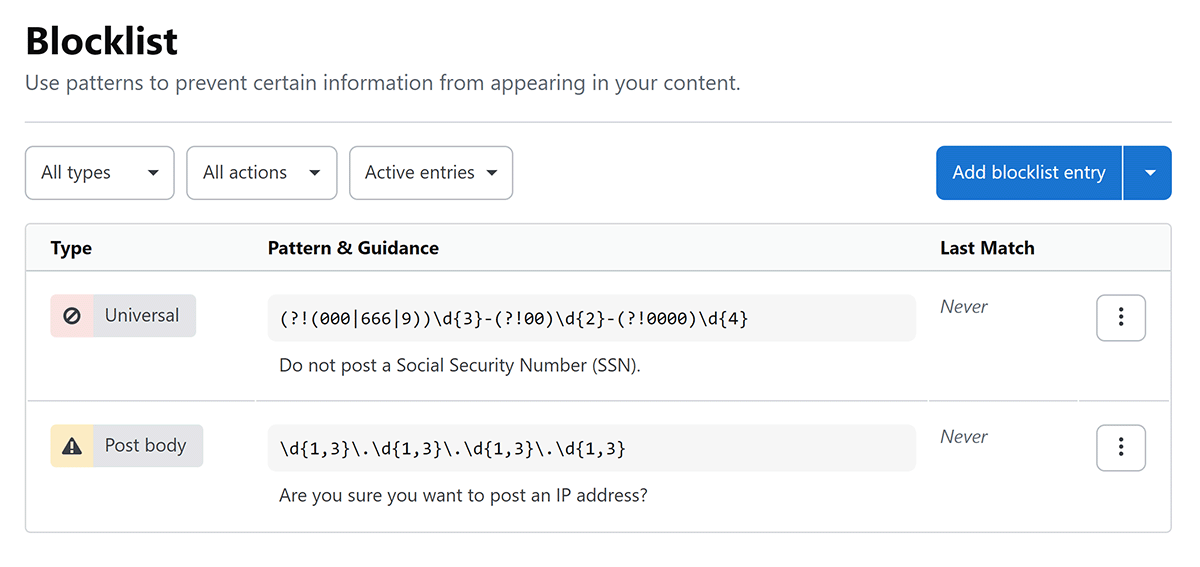
The top of the blocklist page shows existing blocklist entries in a table with columns for type, pattern and guidance message, and last match. You can filter the blocklist table by type, action, and active/inactive status by using the pull-down menus at the top of the table.
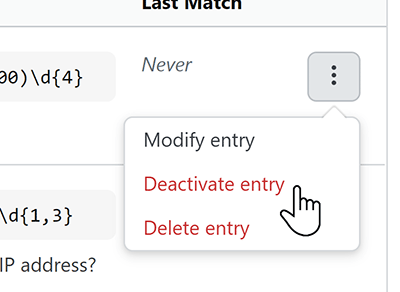
To make changes to an existing entry, click the three dots button in its row. The pop-up menu that appears will allow you to Modify, Deactivate, or Delete the entry.
Add a blocklist entry
Click Add blocklist entry to add a new blocklist entry.
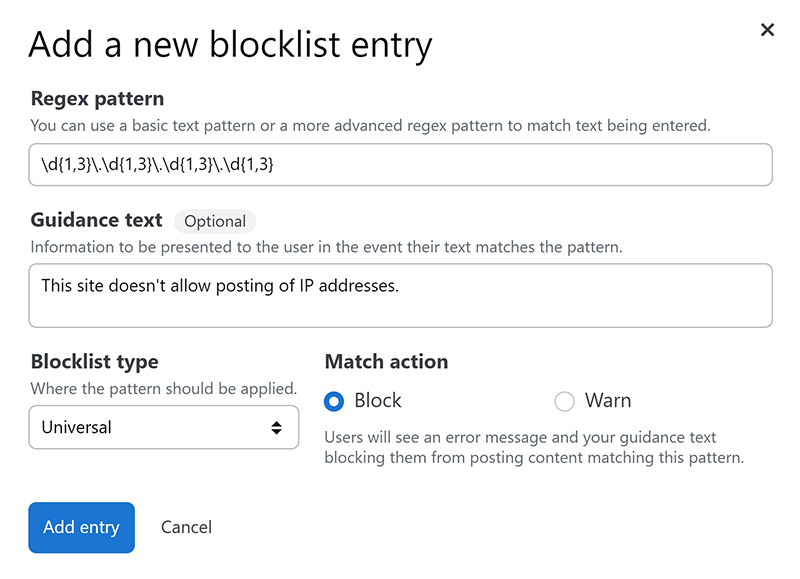
The new blocklist entry box has the following fields.
-
Regex pattern Enter the basic text or regex pattern the site will watch for. For a list of regex examples, see the "Regex patterns" section below.
-
Guidance text The prompt shown to the user if their text matches a blocklist entry.
-
Blocklist type Set which user text field this blocklist entry applies to. The options are:
- Universal (default)
- Post body
- Post title
- Display name
- Tag
- Comment
- Team name
- Flag content
The universal blocklist type applies to all user text entry fields. Unless a specific application requires a different blocklist type, we recommend keeping the default Universal selection.
-
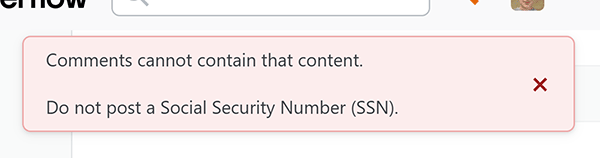
Match action Select Block or Warn. The block match action displays the guidance text and will not allow the user to save their text entry until they remove the matched content. The warn match action displays the guidance text but allows the user to save their entry.
Block match action example
Warn match action example
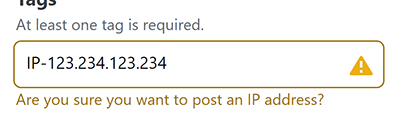
When you're done filling out the new blocklist entry box, click Add entry to save it.
Test blocklist entries
To test your blocklist entries, click the arrow next to the Add blocklist entry button. Select Test blocklist.
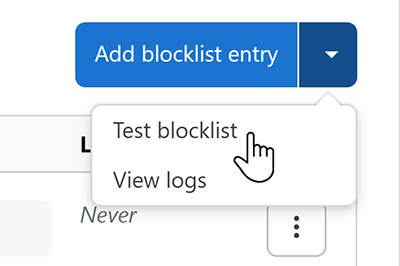
In the text box, enter some text to test against your blocklist entries. Click Test blocklist. If your text matches any of the active blocklist entries, you'll see them listed at the bottom of the box. This process does not test inactive blocklist entries.
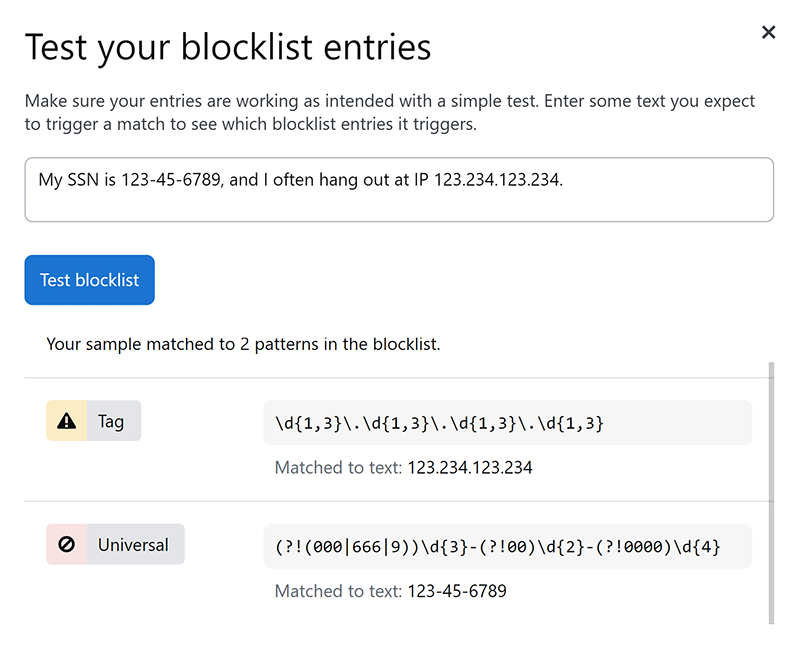
In addition to entering text to match a new or modified blocklist entry, be sure to test text that shouldn't match any blocklist entries. For example: if "This is a sentence" triggers a blocklist match, you likely have a malformed regex pattern.
Blocklist pruning
Running regex can tax a server's processors, especially as the number of blocklist entries increases. To maintain your site's performance, you can have the blocklist tool automatically delete entries that rarely (or never) have a match. You can enable or disable this feature in the "Pruning configuration" area of the blocklist settings page.
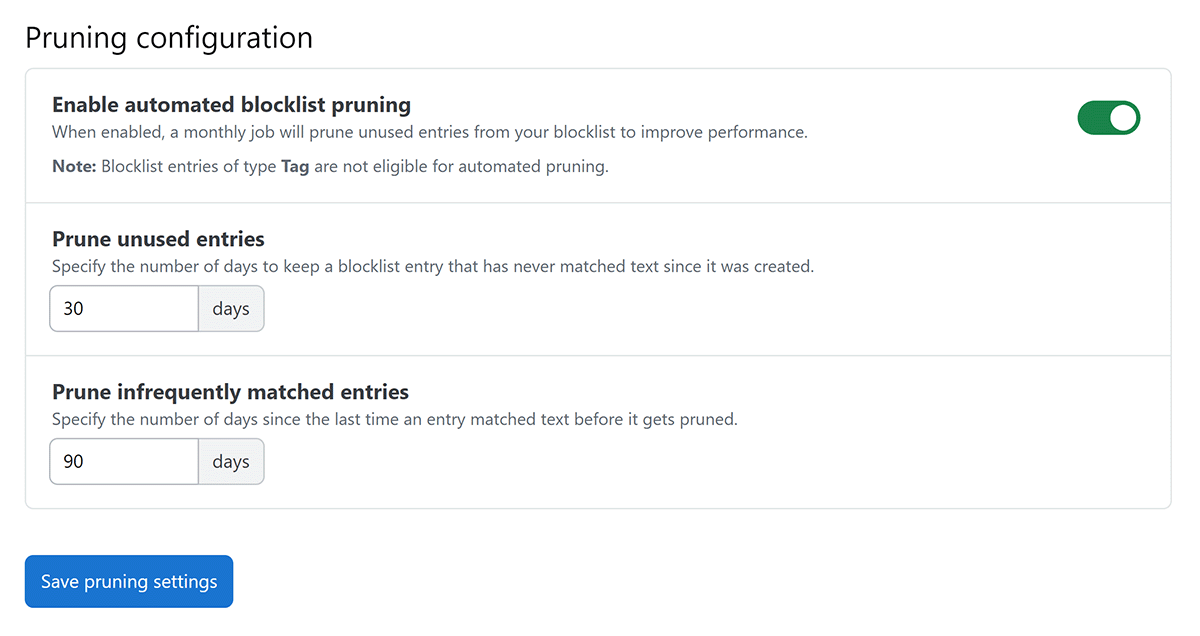
To configure the pruning intervals for blocklist entries, set the two days fields as follows.
- Prune unused entries The number of days the system should retain a blocklist entry that has never had a match.
- Prune infrequently matched entries The number of days the system should retain a blocklist entry after it has had a match. Each new match to a blocklist entry resets this counter.
Pruning does not apply to Tag type blocklist entries.
Blocklist logs
To quickly see when a blocklist entry last matched user text input, check the "Last Match" column in the blocklist entries table. To see a complete log of all blocklist activity, click the arrow next to the Add blocklist entry button and select View logs.
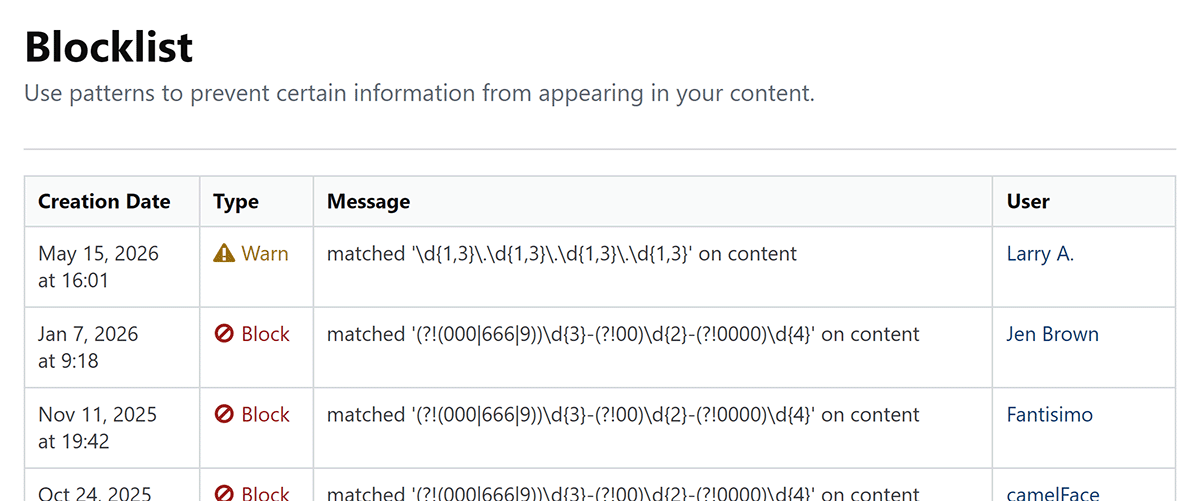
The blocklist log shows the creation date of the log entry (when the match occurred), blocklist type, details about the match, and the user that entered the matched text.
Regex patterns
Any standard regex pattern will work in the blocklist, but proceed with caution. Blocklist entries are active as soon as you submit them, so an improperly formed pattern could keep your users from submitting text anywhere on the site.
We recommend starting new blocklist entries with the match action set to warn. Test the blocklist. On success, set the entry match action to block. You may also want to use an online regex tester before adding any new patterns to the list.
Below are some regex patterns you may find useful.
| Text | RegEx Pattern |
|---|---|
| Social security number | (?!(000|666|9))\d{3}-(?!00)\d{2}-(?!0000)\d{4} |
| Slack token | (xox[p|b|o|a]-[0-9]{12}-[0-9]{12}-[0-9]{12}-[a-z0-9]{32}) |
| RSA private key | -----BEGIN RSA PRIVATE KEY----- |
| SSH (OPENSSH) private key | -----BEGIN OPENSSH PRIVATE KEY----- |
| SSH (DSA) private key | -----BEGIN DSA PRIVATE KEY----- |
| SSH (EC) private key | -----BEGIN EC PRIVATE KEY----- |
| PGP private key block | -----BEGIN PGP PRIVATE KEY BLOCK----- |
| Facebook Oauth | facebook.{0,30}['\\\s][0-9a-f]{32}['\\\s] |
| GitHub | github.{0,30}['\\\s][0-9a-zA-Z]{35,40}['\\\s] |
| Google Oauth | (\client_secret\:\[a-zA-Z0-9-_]{24}\) |
| AWS API key | AKIA[0-9A-Z]{16} |
| Heroku API key | heroku.{0,30}[0-9A-F]{8}-[0-9A-F]{4}-[0-9A-F]{4}-[0-9A-F]{4}-[0-9A-F]{12} |
| Generic secret | secret.{0,30}['\\\s][0-9a-zA-Z]{32,45}['\\\s] |
| Generic API Key | api[_]?key.{0,30}['\\\s][0-9a-zA-Z]{32,45}['\\\s] |
| Slack webhook | hooks.slack.com/services/T[a-zA-Z0-9_]{8}/B[a-zA-Z0-9_]{8}/[a-zA-Z0-9_]{24} |
| Password in URL | [a-zA-Z]{3,10}://[^/\\s:@]{3,20}:[^/\\s:@]{3,20}@.{1,100}[\'\\s] |
| IPv4 address | \d{1,3}\.\d{1,3}\.\d{1,3}\.\d{1,3} |